
Google My Business Post Size: 2026 Specs and Limits
Google My Business post size for 2026: 720 x 720 px square image, JPG or PNG, 10 KB to 5 MB. Check the specs, fix rejections, and keep posts live.
Table of Contents
- 1Introduction
- 2Post Image Size Specs at a Glance
- 3Official guidance versus older templates
- 4Post Types and the Fields Each One Needs
- 5Give events an actual schedule
- 6How to Size and Export a Post Image
- 7Prepare the image
- 8Export and inspect
- 9Why Post Images Get Rejected or Look Blurry
- 10Replace weak originals
- 11Profile Photo and Video Size Notes
- 12Confirm video separately
- 13What Images Work for Your Type of Business
- 14Match the photo to the visit
- 15Show the actual place or work
- 16How Long a Post Stays Visible to Customers
- 17Put a short check on your calendar
- 18Confirm Your Post Sizes Before Your Next Post
- 19Your check for this week
Introduction
Use a square image at 720 by 720 pixels, saved as JPG or PNG, between 10 KB and 5 MB, with 250 by 250 pixels as the minimum. That's a practical starting point for Google Business Profile posts, based on Google's general photo guidance rather than a guaranteed post display shape.
You're at the restaurant counter or in the back office, trying to publish a special before customers start calling. The photo looks fine on your phone, but the upload fails or the preview cuts off the offer. You don't need a different design for every screen. You need a reliable export template and a quick check before publishing.
Post Image Size Specs at a Glance
A restaurant posts a lunch special from the counter. A salon shares an available appointment from the back office. In both cases, the official photo limits give you a usable upload baseline, while older blog templates may recommend different shapes or dimensions.
Google's image guidance lists 720 × 720 pixels recommended, 250 × 250 pixels minimum, JPG or PNG, and a file size of 10 KB to 5 MB.
Google Business Profile image specs for posts and photos
| Asset | Recommended size | Minimum size | File type | File size |
|---|---|---|---|---|
| Post image (Update, Offer or Event) | 720 × 720 px square, based on Google's general photo guidance | 250 × 250 px | JPG or PNG | 10 KB to 5 MB |
| Business Profile photo (general) | 720 × 720 px | 250 × 250 px | JPG or PNG | 10 KB to 5 MB |
Post image (Update, Offer or Event)
Business Profile photo (general)
Video dimensions, formats, and length limits aren't covered in this table. Check Google's current video help before preparing a video post.
These photo figures are general upload guidance, not a promise that every post will appear as a full square. Google may crop or resize the image in Search and Maps, so check the preview on a phone. A headline placed too close to an edge may be cut off even when the file meets the stated limits.
The minimum is an upload floor, not a quality target. A small image can lose detail when enlarged on a phone. Exporting a larger copy of a blurry thumbnail won't restore the detail that isn't there.
Official guidance versus older templates
Older guides may recommend horizontal layouts or other dimensions. Treat those as design choices, not official requirements, unless they match Google's current support guidance. There's no need to rebuild your image library just because a blog calls its preferred shape the standard.
For example, if your phone editor gives you a 1080 × 1080-pixel square photo, export a smaller copy on the recommended canvas rather than uploading the original unchanged. Keep the original for reuse elsewhere.
Practical rule: Prepare the upload, then check the actual post preview. A correctly sized file can still have a poorly placed headline.
Keep the dish, haircut, room, or team member near the center. Leave space around anything that must remain visible, especially a logo or short offer name.
A square canvas in Canva, Adobe Express, or your phone's editor gives you a reusable setup. Save ordinary photo posts as JPG. Use PNG when it keeps graphic edges clearer, and check the exported file's size before uploading.
Post Types and the Fields Each One Needs
Choose Update, Offer, or Event before you design the image. **Google's post creation guidance describes these post types, their fields, and the 24-hour event display** used when a start or end time is missing.
Required fields and date rules by post type
| Post type | Required fields | Dates and times | Button |
|---|---|---|---|
| Update | Description; photo, video, and link are optional | No event dates required; general archive rules apply | Optional action button with a link |
| Offer | Title | Start and end dates and times required | Google adds a View Offer button automatically |
| Event | Title | Start and end dates and times required; missing start or end time displays the event as lasting 24 hours | Optional action button with a link |
Update
Offer
Event
An Update suits news and general notices. A restaurant can show its current lunch special and link directly to online ordering. Don't send a hungry customer to a homepage where they have to find the menu again.
An Offer suits a promotion with a redemption condition or deadline. A salon can add a redemption code and explain which service qualifies. Keep the eligibility details in the post fields, where customers can read them without enlarging the image.
Give events an actual schedule
For a hotel wine night, enter the evening's real start and finish. Otherwise, customers may interpret the displayed event duration incorrectly. A clinic running an information session can use an Event and link to its booking page.
Google's posting overview confirms that posts can appear on Google Search and Google Maps, with optional details such as buttons, coupon codes, or links depending on the post type. Someone checking your business after a “near me” search needs a clear first line and an obvious next action.
Choose the post type from what the customer needs to do. Then use the image to support that action, rather than asking the image to explain everything.
How to Size and Export a Post Image
Keep your original photo untouched and make a separate upload copy. That gives you room to change the crop without losing the source image.
The preparation process is simple enough to handle between bookings or before opening.
Prepare the image
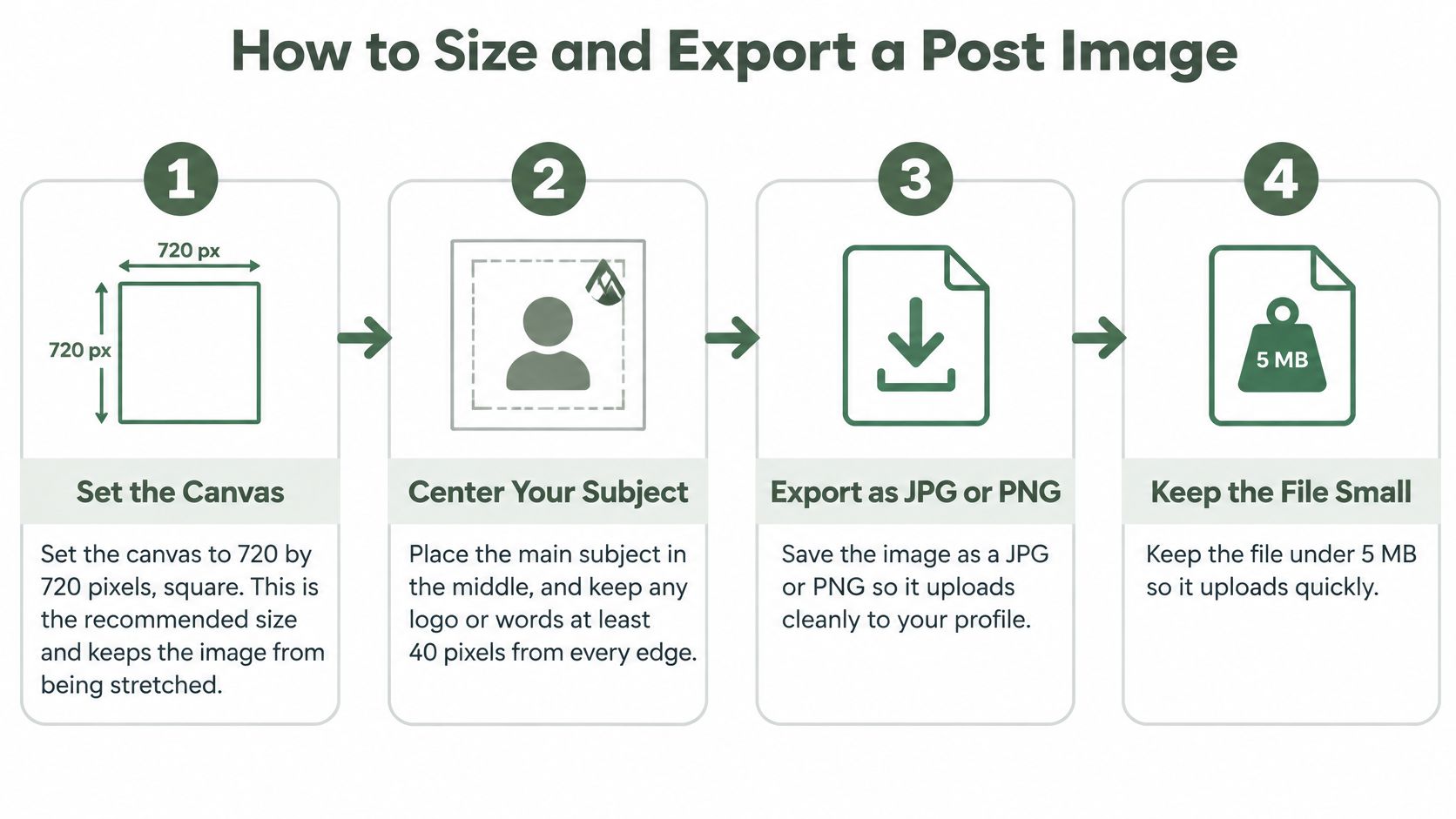
- Set a square canvas. Use the recommended image dimensions in the specs table. In Canva or Adobe Express, create a custom-sized design; in a phone editor, choose a square crop and check the export dimensions.
- Center the main subject. Move the plate, hairstyle, reception desk, or finished job into the middle of the frame. Keep logos and words comfortably inside the edges, because a preview can trim the outer area.
- Keep image text short. An offer name may help, but a paragraph turns the photo into a difficult-to-read flyer. Put terms, prices, and the customer's next step in the appropriate post fields.
Export and inspect
A hypothetical 4000 × 3000-pixel restaurant photo may be unnecessarily large for this job. Resize a copy first, then compress if needed. Compressing the full-size original aggressively can damage detail without giving you a useful composition.
If you also prepare property images for other channels, the listing image requirements from Pinnacle Property Media offer a separate reference for that workflow. Don't transfer another platform's requirements into your Business Profile template.
Keep a clearly named upload folder, such as “Approved profile images.” Store finished exports there, separate from screenshots, originals, and draft designs.
- Save as JPG or PNG. JPG is a sensible starting point for ordinary photographs. Choose PNG when you need cleaner graphic edges, then inspect the file size before uploading.
- **Check the actual file properties.Google's photo requirements accept JPG or PNG files between 10 KB and 5 MB and recommend 720 × 720 pixels, with a 250 × 250-pixel minimum**. If your export exceeds the limit, reduce JPG quality gradually and check for blocky detail, halos, or smeared lettering.
- Look at it on your phone without zooming. A salon price that looks readable on a laptop may be unclear at post-preview size. Increase essential text or, preferably, move it into the post description.
- Check the composer preview before publishing. Confirm that the subject is recognizable and nothing important is clipped. Open the action link too, so you don't publish a polished image with a broken booking path.
Why Post Images Get Rejected or Look Blurry
Check the file before redesigning the post. An oversized phone photo is a sensible first suspect when an upload fails. Re-exporting it can fix the file problem without changing the image itself.
Use the symptoms below as a diagnostic checklist, not proof of the cause. A rejection message alone doesn't tell you which property is wrong.
Post image symptoms, causes and fixes
| Symptom | Likely cause | Fix |
|---|---|---|
| Upload rejected | File over 5 MB | Lower JPG quality or re-export until the file is under 5 MB |
| Upload rejected | File under 10 KB, possibly blank or near-empty | Re-export the real photo and upload again |
| Upload rejected | File saved in a format other than JPG or PNG | Save as JPG or PNG and upload again |
| Image looks soft or pixelated | Source smaller than 720 × 720 px and stretched to fill | Start from a sharp square source of 720 × 720 px or larger |
| Image below minimum size | Small screenshot or crop under 250 × 250 px | Re-shoot or re-export at 720 × 720 px |
| Text or logo cut off on the post | Content placed too close to the edges | Move text and logos toward the center and preview on a phone |
| Image hard to read on mobile | Phone number, fine print, or a long paragraph inside the image | Move those details into the post text or an appropriate action button |
Upload rejected
Upload rejected
Upload rejected
Image looks soft or pixelated
Image below minimum size
Text or logo cut off on the post
Image hard to read on mobile
Replace weak originals
A file below the recommended resolution isn't automatically blurry. The problem is often enlargement, poor focus, or repeated compression. Start with the camera original rather than a screenshot of a social media post.
Don't repeatedly upload the same tiny file hoping it will look sharper. If the original lacks detail, take another photo.
Enlarging a blurry image changes its dimensions, not the detail it contains.
If an export meets the file requirements but still fails, review Google's content guidance and the post's status. Passing a size check doesn't establish that every other part of the post is acceptable.
Profile Photo and Video Size Notes
The same square master can serve a post and a general profile photo when the composition suits both uses. Google's official photo guidance recommends 720 × 720 pixels, sets a 250 × 250-pixel minimum, and accepts JPG or PNG files between 10 KB and 5 MB.
That doesn't mean every asset should contain the same design. A general profile photo should remain useful without the offer text or announcement that accompanied a particular post. Save a clean photographic version alongside your promotional export.
Confirm video separately
Don't apply photo limits to video. Current post-video dimensions, aspect ratios, file formats, and maximum length aren't established by the photo specifications cited here. Check Google's current photo and video help before building a video template.
Before uploading, confirm:
For branches, keep approved image templates in a shared folder and identify the location in each filename. A local manager should replace the photograph with that branch's real storefront or team, not publish another branch's image unchanged.
Use the Business Profile photo sizing guide when organizing your wider photo library. If you operate a fitness business, Gym Membership Tips' Google review strategies for gym owners addresses a related part of profile upkeep. Keep review requests and image preparation as separate tasks, each with a named owner.
- Accepted format: Export a supported video file.
- File size: Check the video-specific upload limit.
- Maximum length: Trim the clip to the current allowance.
- Display crop: Keep essential activity visible in the preview.
- Phone playback: Check that the subject and any lettering remain understandable.
What Images Work for Your Type of Business
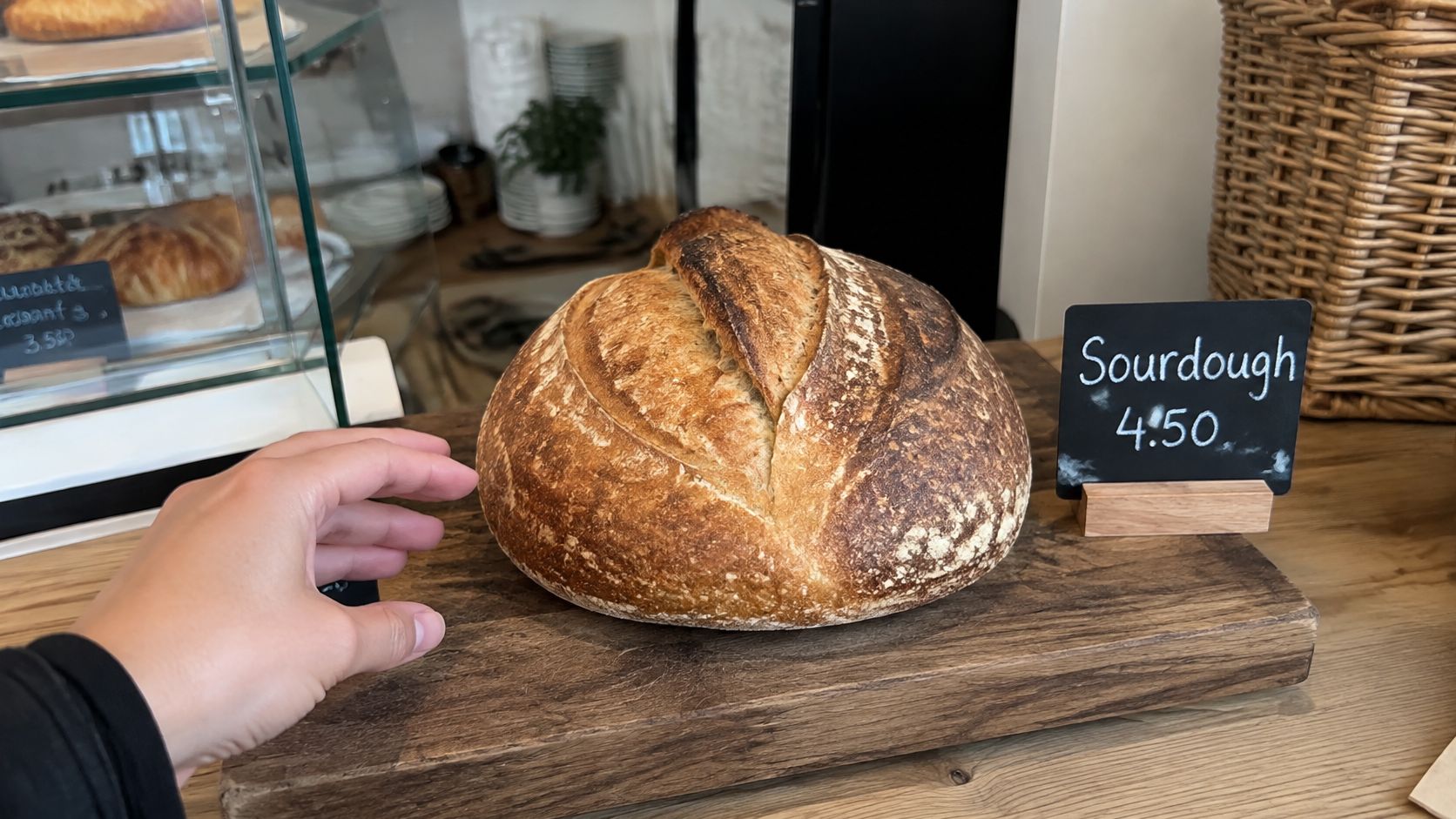
Use something the customer can easily recognize when they visit. A real, well-lit photograph is more useful than a generic stock picture or a heavily filtered scene. The image should help someone understand what you sell and what to expect.
A bakery's own bread is a stronger subject than a graphic filled with claims about freshness.
Match the photo to the visit
- Restaurants: Photograph a plated dish from your kitchen in soft daylight. Remove distracting packaging and dirty tableware, and put the price and offer conditions in the post text.
- Salons: Show a finished cut or color on a client who has agreed to be photographed. Choose an angle that shows the work clearly, and use the button for booking rather than covering the hairstyle with contact details.
- Clinics: Use the entrance, reception area, or team. Avoid images that show patients, readable appointment screens, or paperwork containing personal information.
Show the actual place or work
A hotel should use a room or pool photograph taken when the light shows the space clearly. For a dinner Event, show the actual venue rather than a stock image of a dining room customers won't find on arrival.
A contractor can show a completed job, a clean crew vehicle, or the team in uniform. Remove customer addresses and other identifying details unless you have permission to show them. Keep the image focused on the work, with the contact action handled by the post.
For a multi-location franchise, standardize the layout but localize the photograph. Customers checking a branch on Maps should see that branch, not a flagship location with different facilities.
If a customer walking in wouldn't recognize the photo, don't publish it.
Use these practical Business Profile post examples to turn the photograph into a useful announcement. Start with the customer's question, such as what's available, where it happens, or how to book, and write the post around that.
How Long a Post Stays Visible to Customers
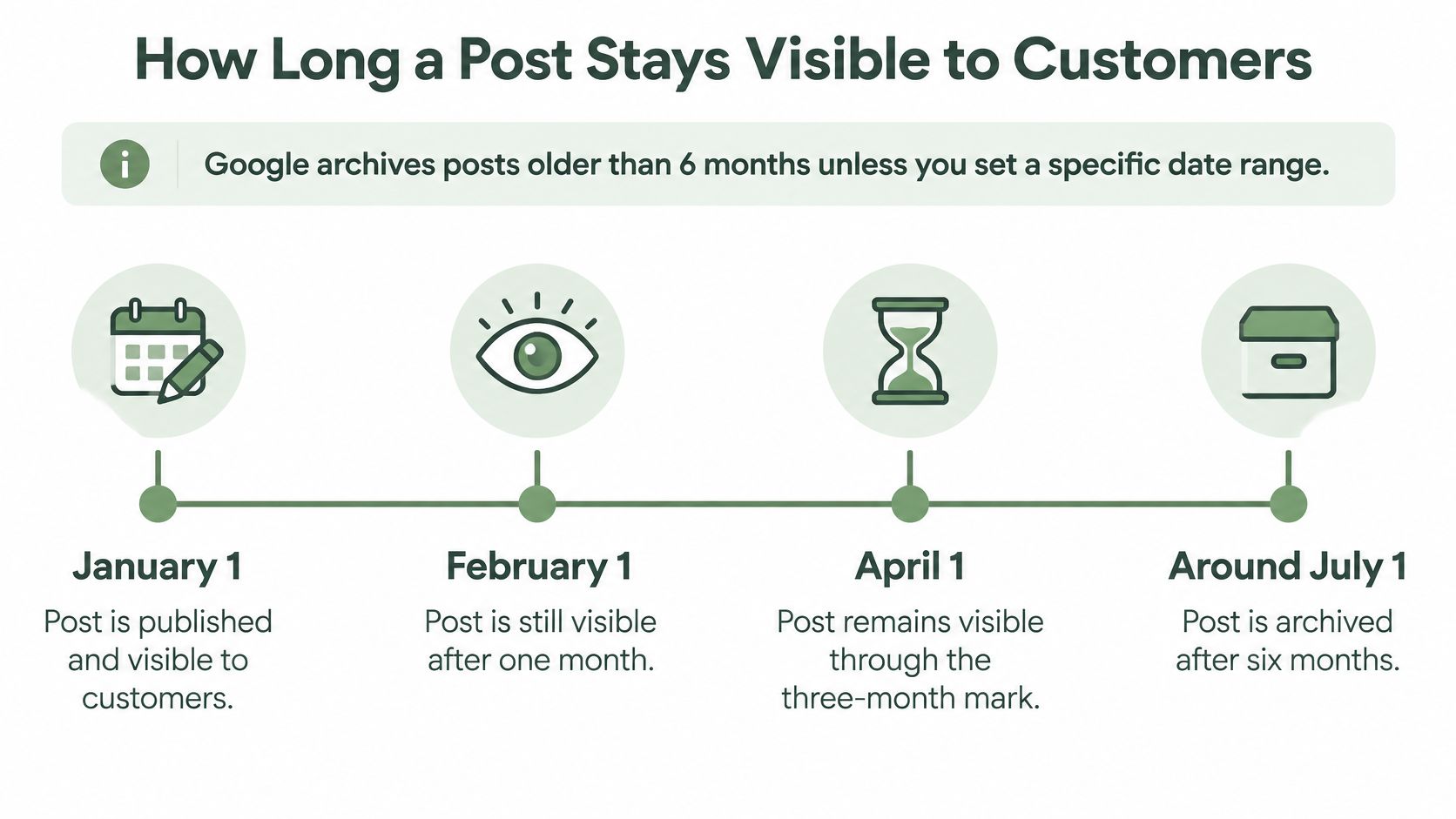
**Posts aren't permanent profile pages.Google's post visibility guidance states that posts older than 6 months** are archived unless you set a specific date range.
For example, a post published on January 1 would ordinarily be archived around July 1 under that rule. Give seasonal Offers and Events their relevant dates, rather than treating the general archive window as the promotion's deadline.
Put a short check on your calendar
Use a monthly reminder as an operating routine, not a claimed Google requirement:
Set the end date for a holiday or seasonal item before publishing. An old promotion can confuse customers even when the photograph still looks good.
For a multi-location business, use a location list with a status column and a named manager. Confirm that each branch has current information and that its post sends customers to the correct ordering or booking page.
This routine keeps customer-facing information accurate. It isn't a promise of better rankings, and posting activity shouldn't be presented as a confirmed ranking factor. The distinction is explained further in how Business Profile posts relate to SEO.
- Check the latest post: Make sure it still reflects what your business offers.
- Review active promotions: Remove or replace outdated offers and check Event dates.
- Publish a useful Update: Share a current service, menu item, facility, or business announcement.
- Assign an owner: Give someone responsibility for checking the copy and action link.
Confirm Your Post Sizes Before Your Next Post
Start with the location you manage directly. Open its Business Profile and check whether the latest post still gives customers a reason to act. Replace an outdated announcement before spending time redesigning a post that remains useful.
Your check for this week
Keep the source photo and approved export together so the next person can reuse the workflow without guessing. Add the monthly profile check to your calendar after publishing.
Pick a location and publish a useful post this week. Use a clear square image, accurate details, and a button that takes the customer directly to the next step.
---
For help preparing posts alongside routine profile upkeep, visit RecensioAI B.V., which offers a Google Business Post generator and profile audits. Use those tools to prepare your next update, then check the image export, wording, and phone preview before publishing.
- Choose a current subject. Pick an available service, an active offer, or a real announcement. Confirm the details with whoever will answer customer questions.
- Inspect the export. Use the square photo settings in the specs table and check the saved file's properties. Don't assume the editor exported the dimensions or format you selected.
- Preview and publish. Read the post on a phone, inspect the crop, and test the action button. You should approve the wording before it goes live, even if someone else prepares it.
Frequently asked questions
You might also like
Handpicked articles for you
Hotel Review Management: Automate Post-Stay Requests with Apaleo, Mews and Your PMS
A practical guide to turning hotel checkouts into timely review requests, with Apaleo live, Mews early access and flexible PMS alternatives.
Why the Business Around the Corner Beats You on Google: What 21,373 Profiles Reveal
We compared 21,373 Google Business Profiles with their three strongest nearby competitors. The gap is smaller than most owners think, but it has two sides: rating and volume.
Treatwell Review Management for Salons: One Reputation View Alongside Google
Bring your public Treatwell rating and recent reviews into RecensioAI, then combine salon signals with Google for faster, better decisions.