
How to Delete a Post on Google Facebook and Instagram
Learn how to delete a post on Google Business Profile, Facebook and Instagram with clear steps, permissions and recovery tips.
Table of Contents
- 1Introduction
- 2Why You Might Need to Delete a Post Right Now
- 3Think beyond the visible button
- 4What Happens When You Delete a Post
- 5Deletion doesn't erase every copy
- 6How to Delete a Google Business Profile Post
- 7Use the profile menu
- 8Verify the public result
- 9How to Delete Posts on Facebook and Instagram
- 10Facebook steps
- 11Instagram steps
- 12Delete Archive Edit or Hide Which Option to Choose
- 13Match the action to the risk
- 14Keep Your Profiles Clean Without Losing Trust
Introduction
A lunch special is still showing on your restaurant's Google Business Profile, even though the offer ended last week. A salon's old holiday hours are confusing customers. A clinic has two nearly identical updates, and a contractor's post lists the wrong service area. In each case, the fix is simple: remove or change the content before another customer acts on it.
The difficult part is knowing what deletion does, who has permission to make the change, and whether the post can be recovered. The steps differ between Google Business Profile, Facebook, Instagram, and X. This guide gives you the click paths, the recovery limits, and the trust considerations that matter when you manage a public business account.
Why You Might Need to Delete a Post Right Now
An outdated post can create a bad customer experience even when your core business information is correct. A customer sees an expired restaurant promotion, visits expecting the deal, and finds that staff never heard of it. Someone books a salon appointment based on seasonal hours that are no longer valid. A clinic update contains an old phone number, or a contractor's post advertises a service the company no longer provides.
Deleting the post removes that source of confusion. It also keeps the public profile easier to understand. That supports trust and profile completeness, although deleting or publishing posts isn't a confirmed direct Google ranking factor.
Practical rule: If a customer could make the wrong decision after reading the post, review it today.
Before you remove anything, check whether the problem is the entire post or only one detail. A typo, outdated booking link, or incorrect opening time may be better handled with an edit. A duplicate announcement can usually be deleted. An expired offer has no ongoing value unless you need it for internal records.
What Happens When You Delete a Post
Deletion means different things depending on where the post lives. A Google Business Profile post belongs to the business profile and may be an Update, Offer, or Event, the three post types described in Google's Business Profile post guidance. Removing it takes that item out of the profile's public content, but it doesn't change your hours, services, photos, reviews, or other profile fields.
Facebook gives deletion a recovery stage. Consumer guidance describes a flow that starts from the profile, uses the three-dot menu, and ends with Delete Post. Deleted Facebook posts move to a recycle-bin style area where they can be restored for 30 days before permanent removal, as explained in WIRED's guide to deleting old social posts.
That window changes how you should handle mistakes. If a staff member removes the wrong promotion, check the recovery area instead of recreating the post immediately. Permanent removal after the recovery period is different from taking a post off public view.
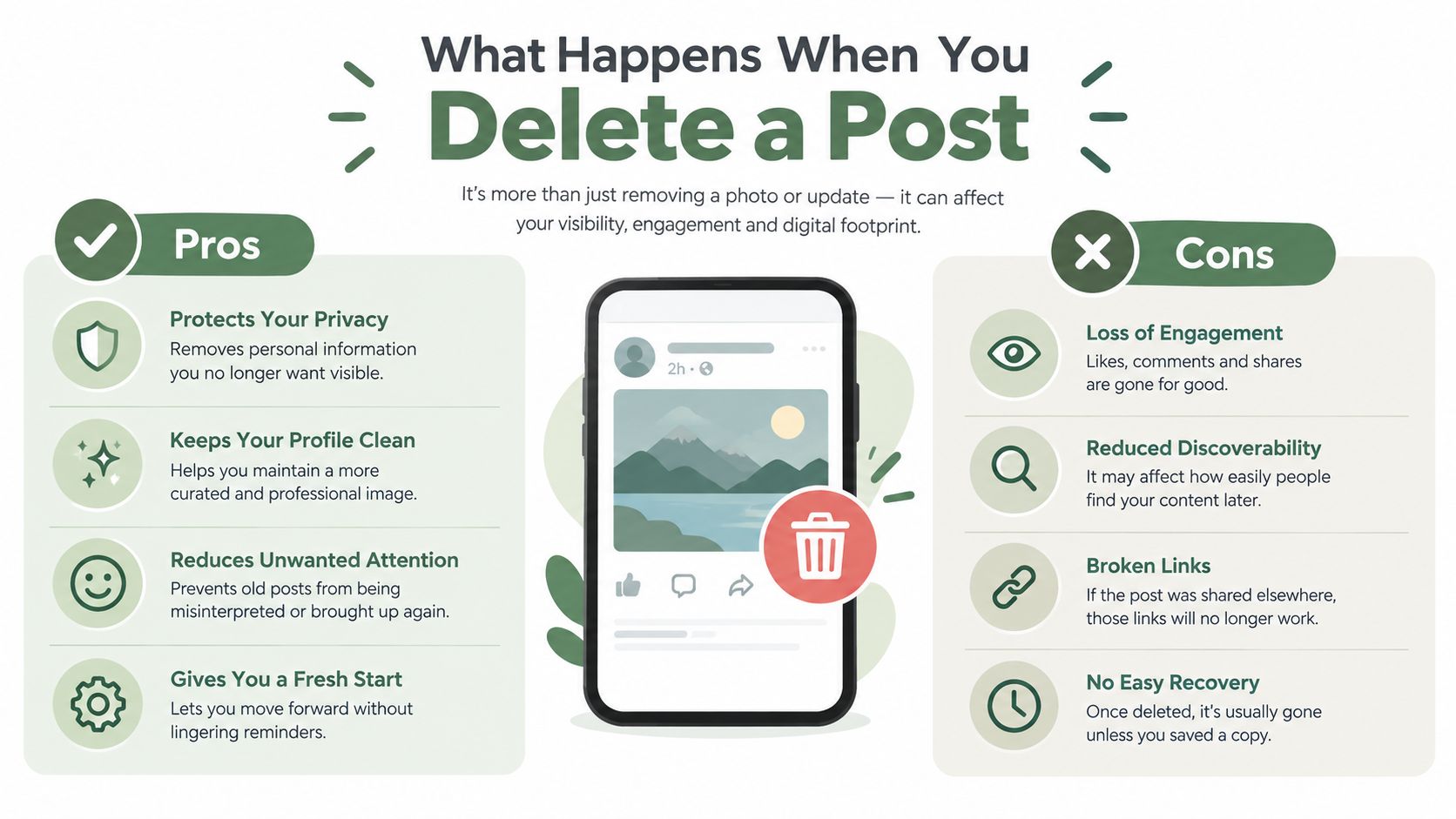
Deletion doesn't erase every copy
On X, the account flow is to open the post, choose Delete, and confirm. X's official deletion instructions make clear where the account-level action happens, but a screenshot, reply, archive, or cached copy may still exist elsewhere. The same practical limit applies to many social platforms.
Some tools also support bulk cleanup by date range or keyword. That can help when a business has years of old content, but bulk actions need a review step. A single wrong keyword can remove useful posts along with expired ones. If you need background on content that may still be visible after deletion, see hidden tweets with SupaBird.
Choose the action before you click. Delete content that has no business value. Archive content you may reuse. Edit a correctable mistake. Hide an individual comment when the post itself still belongs on the profile.
How to Delete a Google Business Profile Post
Google Business Profile posts are managed from the profile itself. You must have a verified profile and the appropriate access to make changes. If you manage several locations, confirm that you're working inside the correct location before deleting anything.
Verify the public result
Open the public profile after deletion and look for the post. Check from a separate browser or account when possible. You're confirming that the customer-facing view no longer shows the outdated offer, event, or update.
The video below shows the menu-based process visually.
If the post still appears, refresh the page and check again from Google Maps. Confirm that another team member didn't publish a duplicate or that you didn't delete a scheduled version while a live version remained. If you still can't manage the post, review profile verification and user permissions. A person without the required role may be able to view the profile but not remove its content.
How to Delete Posts on Facebook and Instagram
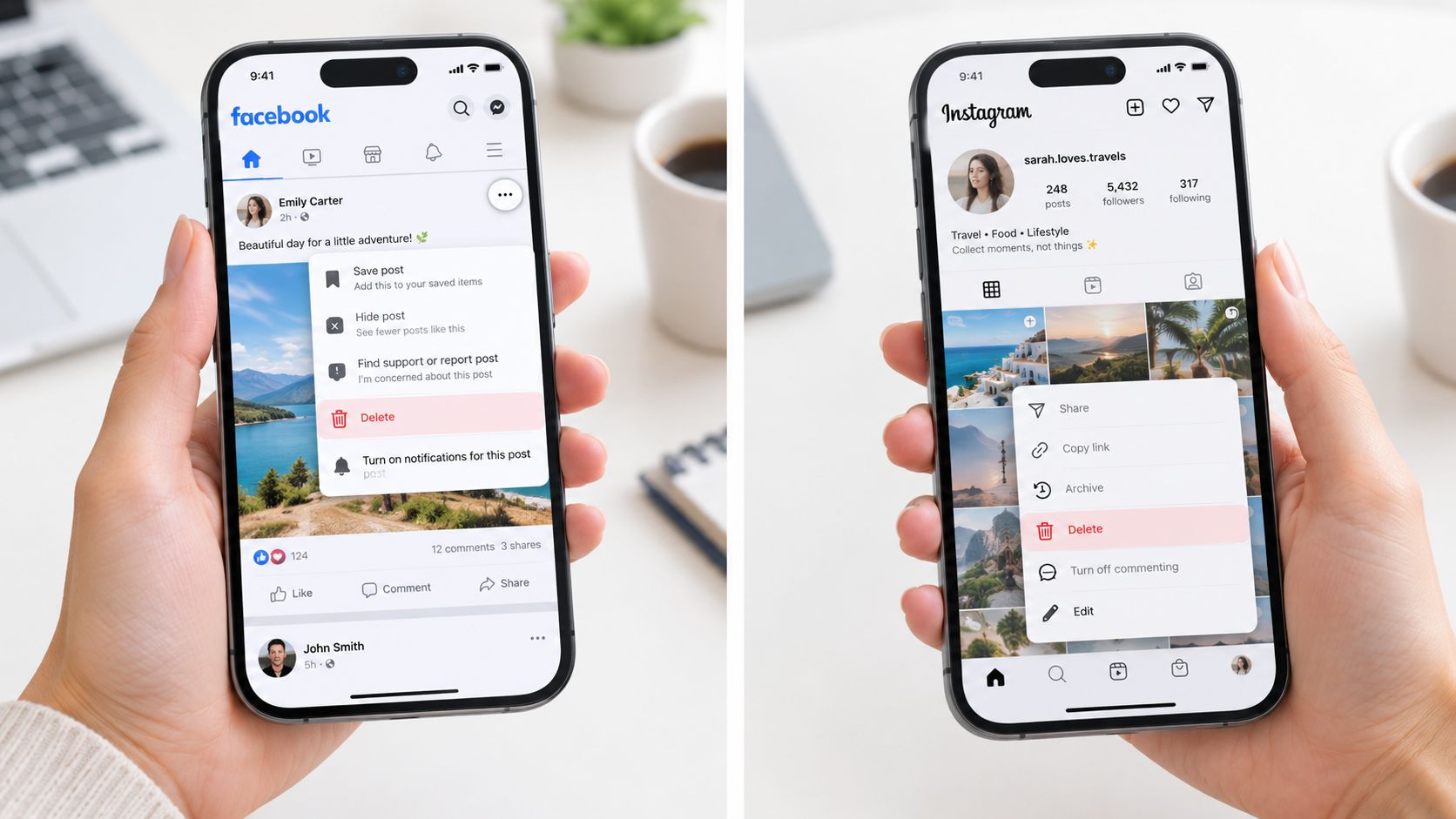
Facebook and Instagram use similar three-dot menus, but the account context matters. A business Page on Facebook isn't the same as a personal profile, and an Instagram professional account may be connected to a different login or Meta account. Start by confirming which account published the content.
Facebook steps
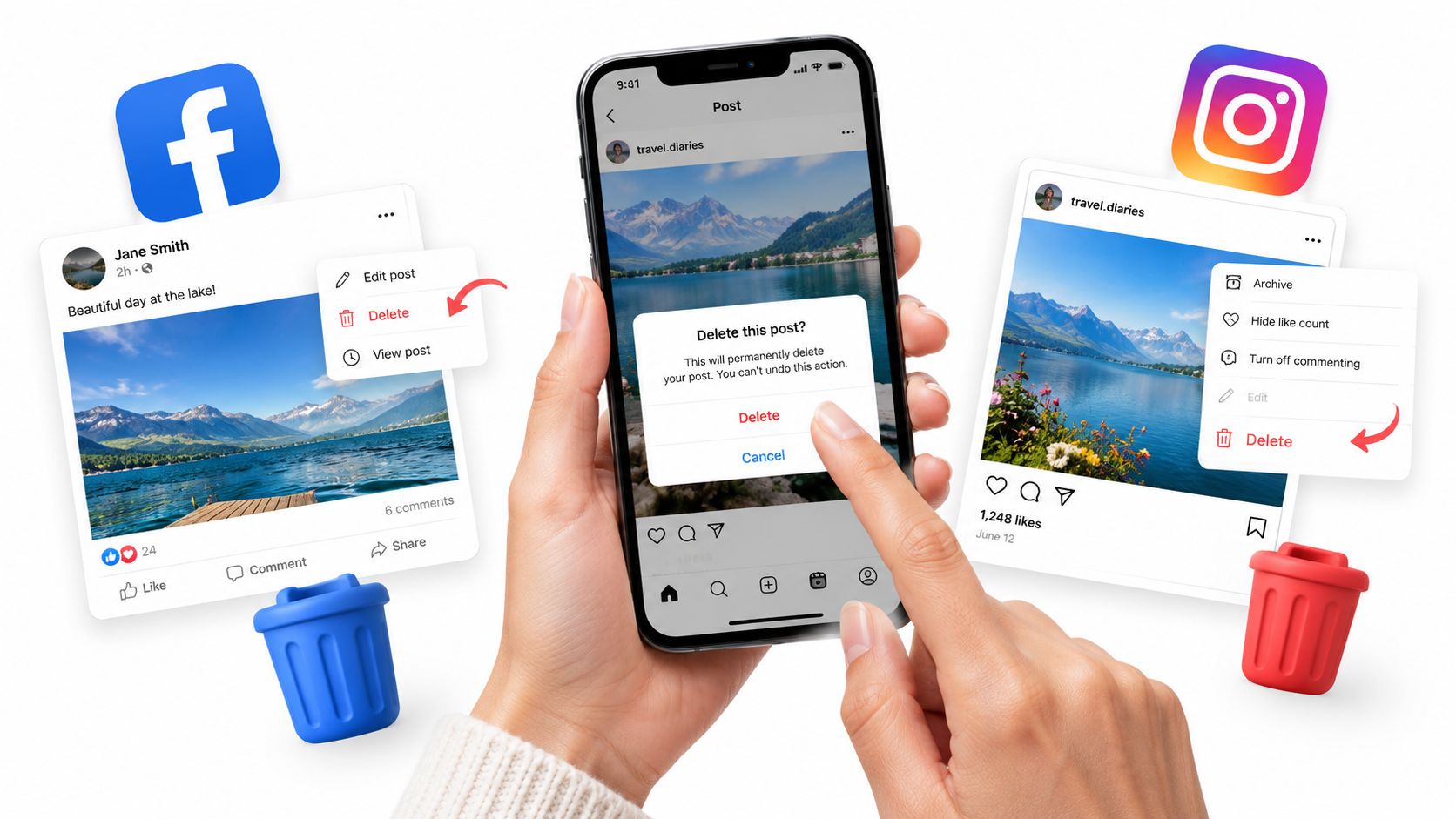
On Facebook, open the business Page or profile and locate the post. Select the three-dot menu in the post's upper corner, choose Delete Post, and confirm the decision.
If you manage a Page, check your assigned role when the option doesn't appear. A Page admin and an editor may not see identical controls. Also confirm that you're acting as the Page, not from your personal profile. The desktop and mobile layouts place the menu in different locations, but the post-level options menu remains the place to start.
Deleted Facebook content can be available in the recycle bin for 30 days, where you may restore it before permanent removal. Check that area if a manager deleted the wrong post or if a promotion was removed before its final day.
Instagram steps
Open Instagram and go to the business profile. Select the post, tap the three-dot menu, choose Delete, and confirm. For a carousel, check the content carefully before removing the entire post. If the item is useful but shouldn't be visible right now, use Archive instead when that option is available.
Instagram's controls can differ between the app and desktop interface. If Delete is missing, confirm that you're signed into the publishing account, switch to the correct profile, and check whether the post belongs to a connected account managed through Meta. A role or ownership mismatch is more common than a missing feature.
For broader operating guidance around local business social accounts, Morristown social media tips can provide useful context. If several people handle posts, keep a simple internal note showing who owns Facebook and Instagram access. That prevents an employee from deleting a post from the wrong account or leaving an expired promotion live because nobody knows who can change it.
Businesses managing both channels can also review the Facebook and Instagram integration, but connected tools don't replace checking the original platform after a deletion.
Delete Archive Edit or Hide Which Option to Choose
Deletion is right when the content is obsolete, incorrect, duplicated, or no longer appropriate for customers. It isn't always the best response. A seasonal hotel photo may be useful next year. A salon announcement with one spelling error may only need an edit. A contractor may want to keep a completed project post visible even after the promotion attached to it ends.
Use this quick comparison before taking action:
| Action | Best For | Reversible | Visibility After |
|---|---|---|---|
| Delete | Expired offers, duplicates, incorrect announcements | Depends on the platform and recovery rules | Removed from the account view |
| Archive | Seasonal photos or content you may reuse | Often, depending on the platform | Hidden from the public profile |
| Edit | Typos, old links, or correctable details | Usually, through another edit | Updated version remains visible |
| Hide | An individual comment that should not remain visible | Depends on the platform | The selected comment is hidden, while the post stays visible |
Delete
Archive
Edit
Hide
Match the action to the risk
Delete an expired “this weekend” offer. Edit a wrong phone number if the post still has useful information. Archive a strong room photo during the off-season instead of discarding it. Hide a disruptive comment without deleting an entire clinic announcement.
Deletion can also raise questions when customers see content disappear without understanding why. That doesn't mean you should leave incorrect information online. It means you should avoid deleting useful context because one comment is unpleasant.
Review replies need separate handling. Google says replies are public and posted as the business, and you must verify the business before responding, according to Google's review reply guidance. Treat a reply as part of a customer conversation, not as a normal promotional post. Correct a factual error carefully, and don't remove a reply just to avoid addressing a legitimate concern.
A regular content workflow can reduce rushed decisions. If you use social media post automation, keep a human review step for scheduled offers, changes to hours, and posts shared across locations.
Keep Your Profiles Clean Without Losing Trust
Set a weekly calendar reminder for profile cleanup. It doesn't need to become a large project. A manager can review the public profile, scheduled content, and recent updates while checking the details customers use to call, visit, or book.
Use this short checklist:
A current profile helps customers understand your business when they search for services near me on Google Maps. Google says local results are based mainly on relevance, distance, and prominence, and it says prominence is influenced by factors such as the number of reviews and the ratings a business receives, as described in Google's local ranking guidance. Keep the ranking claim precise. Review count and rating are documented factors. Post activity and review replies should be managed for trust, engagement, and profile completeness, not treated as guaranteed ranking levers.
RecensioAI can help businesses manage review requests, public replies, profile audits, and Google Business Profile posts from one system. It should support your operating routine, not replace the final check before a customer-facing update goes live.
Pick one profile today. Find one outdated post, then either delete it, archive it, or edit it and verify the public result before you move on.
---
RecensioAI B.V. helps local businesses manage review requests, review replies, profile checks, and customer-facing posts without relying on staff memory alone. Visit RecensioAI B.V. to see how it can fit your weekly profile cleanup routine.
- Review scheduled posts: Remove promotions that no longer match the calendar.
- Remove expired offers: Check restaurants, salons, hotels, and service businesses for time-limited deals.
- Check duplicates: Compare recent updates across Google Business Profile, Facebook, and Instagram.
- Confirm hours: Make sure holiday, seasonal, and appointment information is current.
- Review photos: Replace or archive images that no longer represent the location or service.
- Check permissions: Make sure the people publishing and deleting content have the correct account access.
You might also like
Handpicked articles for you
Hotel Review Management: Automate Post-Stay Requests with Apaleo, Mews and Your PMS
A practical guide to turning hotel checkouts into timely review requests, with Apaleo live, Mews early access and flexible PMS alternatives.
Why the Business Around the Corner Beats You on Google: What 21,373 Profiles Reveal
We compared 21,373 Google Business Profiles with their three strongest nearby competitors. The gap is smaller than most owners think, but it has two sides: rating and volume.
Treatwell Review Management for Salons: One Reputation View Alongside Google
Bring your public Treatwell rating and recent reviews into RecensioAI, then combine salon signals with Google for faster, better decisions.