
How to Leave a Google Review for a Company Made Simple
Learn how to leave a Google review for a company on Search, Maps and mobile, add photos, and follow best practices that keep reviews live.
Table of Contents
- 1Introduction
- 2What Customers See Before They Leave a Review
- 3How Leaving a Google Review Actually Works
- 4Where to Leave the Review: Search, Maps and Your Phone
- 5Google Search on a desktop
- 6Google Maps on a desktop
- 7Google Maps on Android or iPhone
- 8A direct link or QR code
- 9Adding Photos Choosing Language and Editing Your Review
- 10What Keeps a Review Live and What Gets It Removed
- 11The wording problem owners often miss
- 12A simple policy check
- 13Make It Easy for Every Customer to Leave a Review This Week
Introduction
A customer leaves your restaurant, salon, clinic, hotel, or contractor job satisfied. They tell you, “I'll leave a review.” Then the day gets busy, they can't find the right Google listing, or they don't know where the review button is. The review never appears.
That gap is usually a friction problem, not a lack of goodwill. Your customer needs a clear path from the conversation or receipt to your Google Business Profile. By the end of this guide, you'll know what that path looks like on Search, Maps, the Google Maps app, a direct link, and a QR code. You'll also know how to ask for honest feedback without creating policy problems that can damage your profile.
What Customers See Before They Leave a Review
A salon customer may be standing outside after an appointment, holding a coffee and trying to remember the business name. A clinic patient may want to write something helpful but feel unsure which location to choose. A hotel guest may search from their phone and find several similarly named properties.
Google expects the customer to locate the correct Google Business Profile, open it, and find the review option. If the customer has to search through several listings or sign in before understanding what to do, many will stop. A direct review link or a QR code removes much of that uncertainty.
That matters for more than convenience. Reviews help people judge a local business before they call, visit, or request directions, and review count and rating are documented factors used in Google's local ranking systems. They can contribute to how your business competes for visibility in “near me” searches, including the map results where customers compare restaurants, contractors, clinics, and other local providers.
Practical rule: Ask for an honest review, then make the route to the right profile obvious.
Your staff doesn't need a long script. A restaurant can print a QR code on the receipt. A contractor can send a follow-up message with a review link after the job. A hotel can place the link in a post-stay email. The customer should still choose what to write and whether to post publicly.
For more background on how reviews fit into the wider profile, see this guide to Google Business Profile reviews. The operating principle is simple: remove navigation problems, not customer choice.
How Leaving a Google Review Actually Works
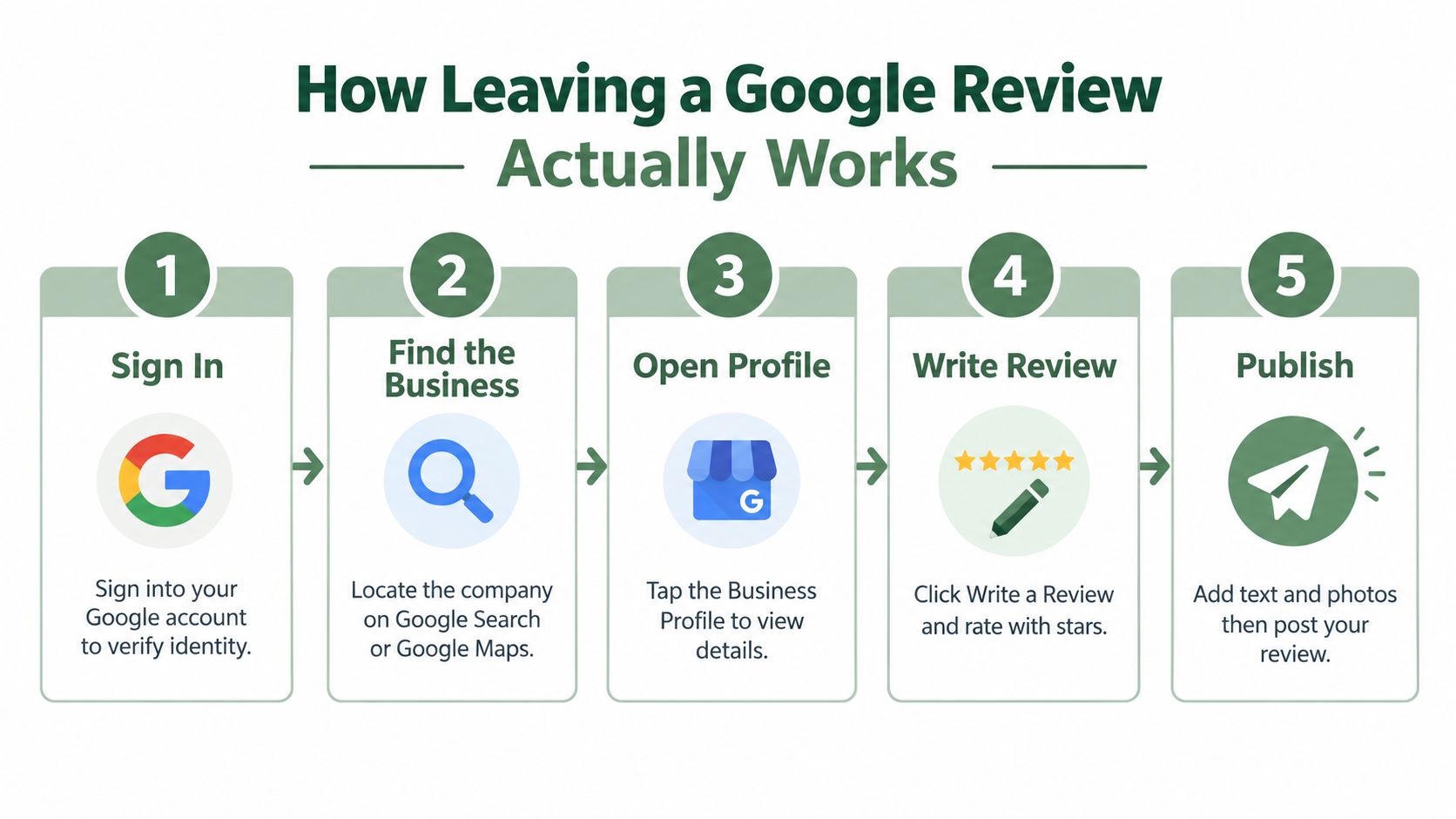
The basic process is the same whether a customer starts in a desktop browser, Google Search, Google Maps, or the Google Maps app. The customer generally needs to be signed in to a Google account. A Gmail address isn't required, but a Google account is needed to connect the review to a user profile.
The customer searches for your business in Google Search or Google Maps. They should check the address, phone number, and other listing details before selecting the correct result. This is especially important for multi-location franchises, clinics with several offices, and contractors serving nearby towns.
After opening the Business Profile, the customer selects Write a review. Google then presents a star rating from 1 to 5, a text field, and an option to attach photos where available. The customer chooses the rating, writes about the actual experience, adds optional images, and selects Post.
A customer might write about wait time at a restaurant, communication from a contractor, cleanliness at a hotel, or how clearly a clinic explained the next appointment. Those details are more useful than a vague sentence, but you shouldn't dictate the wording.
The customer should describe their own experience in their own words.
Google's review workflow and editing guidance confirm that a posted review can later be edited or deleted through Maps. That gives customers a way to correct a mistake, update their comments, or remove the review if they change their mind. You can point this out if a customer hesitates because they think posting is irreversible. The Google review workflow guidance supports this sequence from sign-in through publication.
Where to Leave the Review: Search, Maps and Your Phone
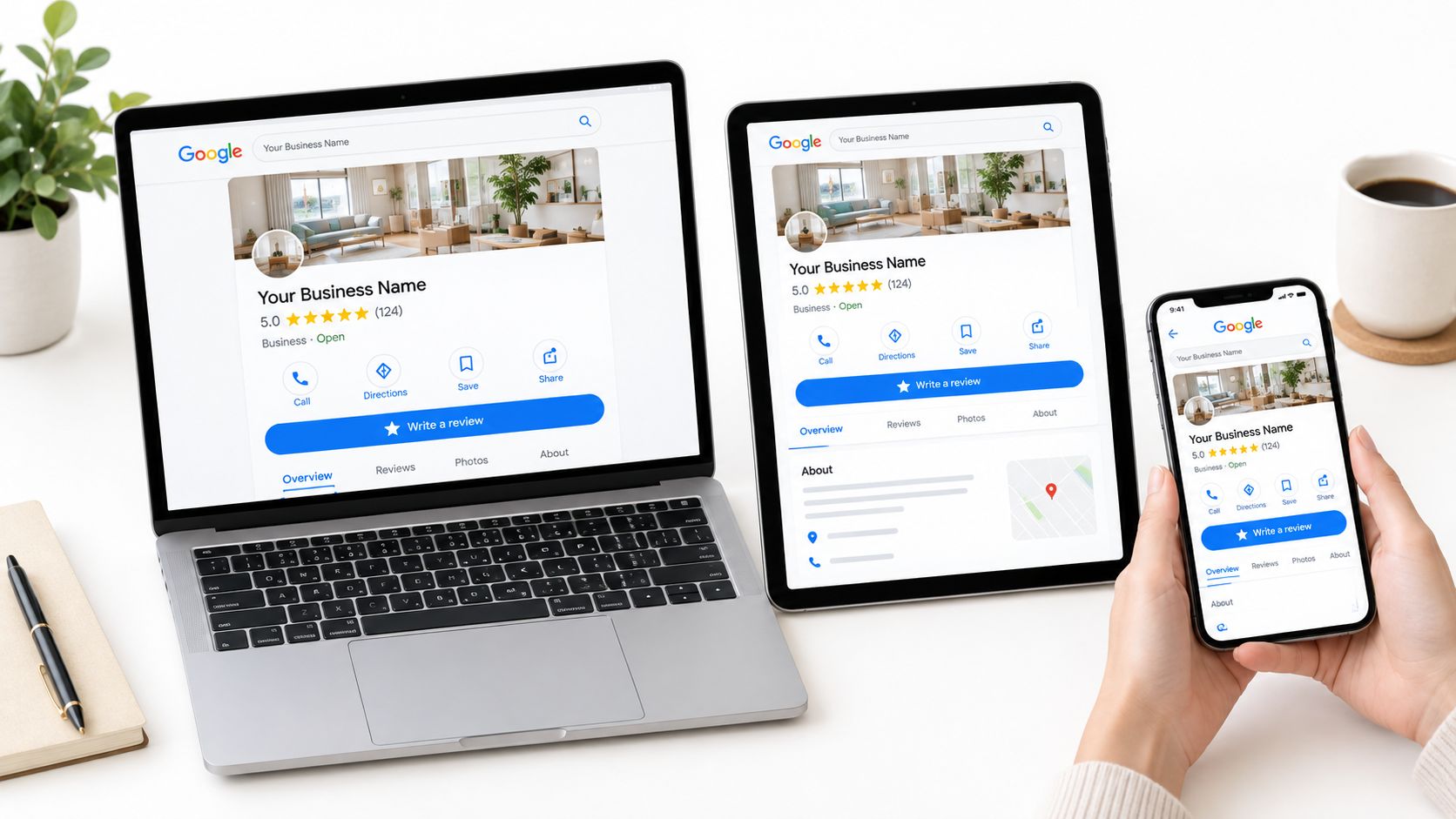
The right route depends on where your customer is and which device is already in use. Someone at a desk can search by business name. Someone leaving your premises may scan a QR code on a phone. Give each person a short path to the correct Business Profile.
Google Search on a desktop
The customer signs in to Google, searches for the business name, and opens the correct Business Profile. They find the reviews area or Write a review, choose a star rating, add comments and optional photos, then select Post.
This route suits a customer who already has a laptop open, such as a business client reviewing a contractor or a hotel guest writing from a work computer. If your company has several branches, ask the customer to confirm the location before posting. A similar business name can lead to a review being attached to the wrong profile.
Google Maps on a desktop
The customer opens Google Maps, signs in, and searches for the business. After selecting the listing, they open the profile panel and find the reviews area. Write a review opens the same rating, text, photo, and Post steps.
Maps is a practical choice for someone who has just used it for directions. The customer is already viewing a location, which helps reduce mistakes between branches or businesses with similar names.
Google Maps on Android or iPhone
In the Google Maps app, the customer searches for the business or selects it on the map. They tap the business name or address, open the Reviews tab, and choose the option to rate and review. They select the stars, write their comments, add optional photos, and tap Post.
Android and iPhone screens may differ slightly. The customer still needs the business profile, the reviews area, and the writing option. A short instruction is usually enough: “Open our Google Maps listing, tap Reviews, then Write a review.”
The device and Maps review instructions outline this path across Search, Maps, and mobile.
A direct link or QR code
A direct review link brings the customer closer to the writing screen than a general request to “find us on Google.” Use it in a follow-up email, text message, receipt, appointment message, or invoice. A QR code can serve the same purpose at a restaurant counter, salon reception desk, clinic checkout area, or hotel front desk.
Test the link on a phone while signed out and signed in. Check that it opens the correct location and does not send customers to another branch. A link is convenient for digital messages, while a QR code fits a physical counter or printed receipt. The comparison of Google review links and QR codes explains the practical difference.
Do not coach customers to use matching phrases or offer rewards for positive reviews. Ask for an honest account of their own experience. Those safeguards help avoid fake engagement and wording that can put reviews at risk under Google's current policies.
Adding Photos Choosing Language and Editing Your Review
Photos can add useful context to a review. A restaurant customer might show a dish or dining area. A hotel guest might photograph the room. A contractor's customer might document the completed work. The customer can attach optional photos while writing the review, provided the images follow Google's content rules.
The same policy framework applies beyond written comments. Google's Business Profile content policies cover reviews, photos, and videos, so an image isn't exempt from the rules that govern review content. A photo should relate to the customer's experience and avoid private information, unrelated promotion, or material that violates Google's policies.
Google may display the review interface in a language connected to the customer's account, device, or location settings. If a customer sees a different language than expected, they can check their Google or device language settings and continue using the labels for the profile, reviews, rating, and Post controls. Don't tell customers that they must write in English. Useful firsthand feedback can come from customers who speak other languages.
After publishing, the customer can manage the review from Google Maps. They open their profile or contributions area, locate the review, and use the available edit or delete controls. Editing can help when a customer typed the wrong business detail, attached an incorrect photo, or wants to update their account of the experience.
For customers who ask whether images are worth adding, explain the practical value without pressuring them. A photo should support the review, not serve as decoration or a promotional asset supplied by your staff. More detail on this topic is available in why photo reviews matter on Google.
What Keeps a Review Live and What Gets It Removed
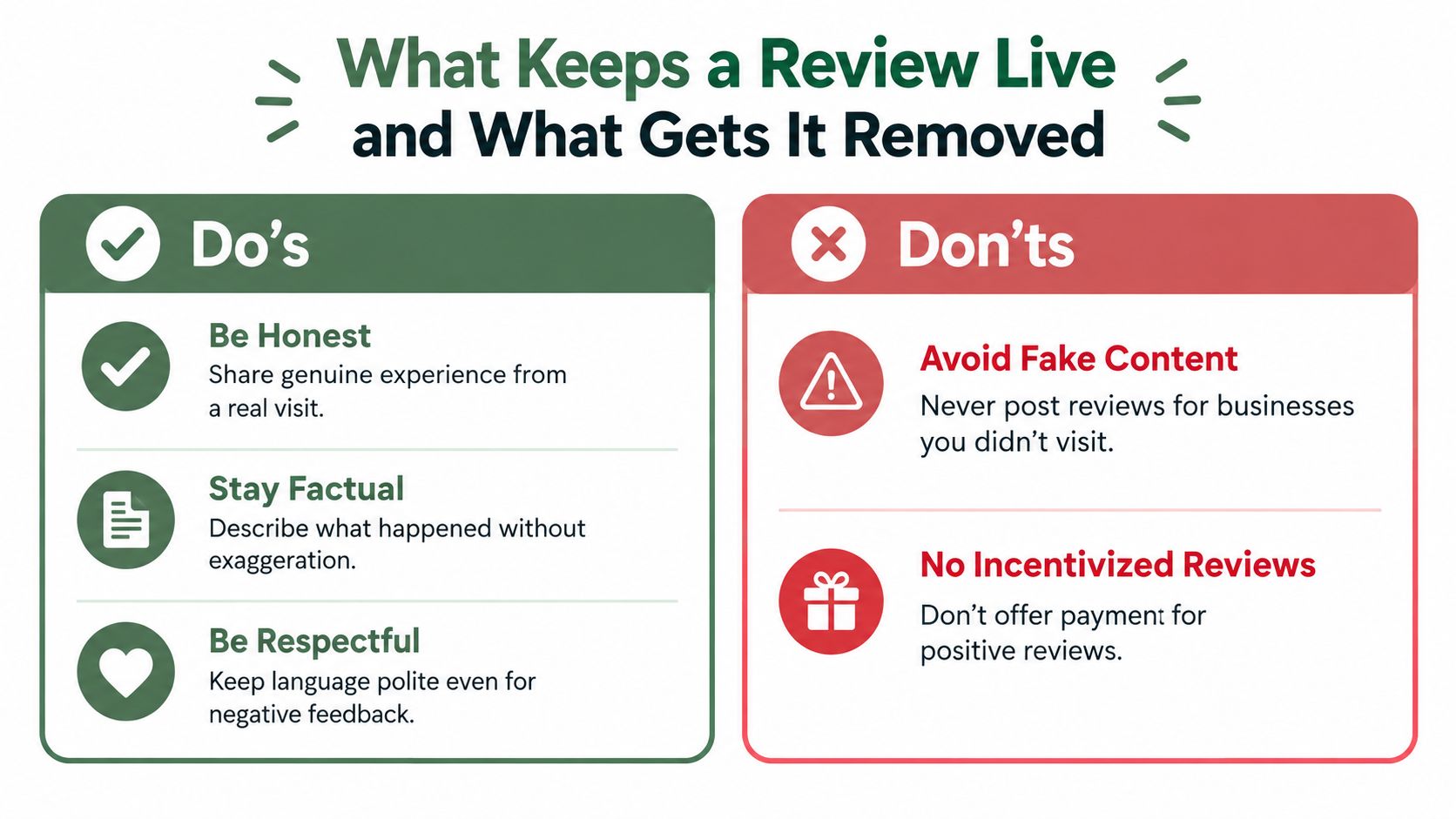
Many owners assume that a real customer can write anything because the visit really happened. That isn't how Google's policies work. The customer's experience may be genuine, but the review can still be removed if the content appears abusive, promotional, deceptive, conflicted, or otherwise inconsistent with policy.
Highly negative reviews need special care. A 2026 independent study reported that 25.0% of 1-star Google reviews were flagged, compared with 12.9% of 2-star reviews and 9.3% of 3-star reviews in its sample, as described in the Google review violation study. Those figures don't mean a negative review is automatically invalid. They do show why a customer should describe what happened, avoid threats and insults, and separate firsthand facts from assumptions.
The wording problem owners often miss
A real customer can still create risk if staff coaches the review too closely. Recent 2026 coverage describes Google targeting feedback that appears steered toward specific employee names, keywords, or promotional language, even when the customer is genuine. Don't hand a customer a sentence to copy. Don't ask them to mention a service phrase because you want it associated with the listing.
Ask for an honest account in the customer's own words. Don't offer payment, discounts, gifts, or other incentives for positive reviews. Google's policies also prohibit fake reviews, undisclosed incentivized reviews, and conflicts of interest.
A simple policy check
If you find a suspicious review, use Google's reporting options through the profile in Search or Maps, then follow the available Business Profile support process. Don't retaliate publicly or ask customers to bury it with a wave of new reviews. Document why the review appears to violate policy and let Google assess it.
Google can remove violative content and restrict a profile when it determines the owner breached the Fake Engagement policy. During a restriction, the profile may be unable to receive new reviews or ratings, existing reviews or ratings may be unpublished temporarily, and Google may display a warning that fake reviews were removed, as explained in its Business Profile restrictions guidance.
You can reply to customer reviews from the Business Profile by selecting Reply beside the review. Keep the response calm, acknowledge the experience, and move sensitive details into a private conversation. A thoughtful reply shows readers that someone is paying attention. It doesn't erase the original complaint.
- Describe a real visit: The reviewer should have firsthand experience with the business.
- Stay specific: Explain the service, problem, or outcome without exaggeration.
- Keep it respectful: Negative feedback can be direct without becoming abusive.
- Avoid scripts: Ask for honest feedback, not names, keywords, or promotional wording.
- Don't manufacture reviews: Never post for a business you didn't use or ask staff to review their own workplace.
- Don't pay for praise: Incentives tied to positive feedback can put the profile at risk.
Make It Easy for Every Customer to Leave a Review This Week
Choose one customer touchpoint and fix it this week. If most of your customers leave through a front desk, place a tested QR code beside the payment terminal. If you have completed service jobs, add a direct review link to the follow-up message. If you run appointments, include it in the message sent after the visit.
Use a short request that protects customer choice: “If you'd like to share your honest experience, you can review us on Google.” Don't ask for a particular star rating, specific employee name, keyword, or positive outcome. Give every customer the same public Google review option and a private feedback option side by side, with the customer deciding which one to use. Never intercept negative feedback or route unhappy customers away from Google.
The habit supports trust with future customers who compare businesses in Google Maps and search for services nearby. It also gives you a reliable way to hear what customers notice, whether that means booking delays at a clinic, inconsistent service at a restaurant, room issues at a hotel, or communication gaps during a contractor project.
A tool such as RecensioAI can automate review requests through email, SMS, QR code, or a shareable link while keeping public review and private feedback as equal choices. You can also start with a simple link and a spreadsheet if that fits your operation.
Pick one location, test the review path yourself, and add it to the customer message your team already sends. That is the next action that turns “I'll leave a review” into a clear option the customer can use.
---
RecensioAI B.V. provides automated review requests through email, SMS, QR codes, and shareable links, with a direct Google review option and a private feedback option presented side by side. Visit RecensioAI B.V. to see how it can fit your customer follow-up process.
You might also like
Handpicked articles for you
Hotel Review Management: Automate Post-Stay Requests with Apaleo, Mews and Your PMS
A practical guide to turning hotel checkouts into timely review requests, with Apaleo live, Mews early access and flexible PMS alternatives.
Why the Business Around the Corner Beats You on Google: What 21,373 Profiles Reveal
We compared 21,373 Google Business Profiles with their three strongest nearby competitors. The gap is smaller than most owners think, but it has two sides: rating and volume.
Treatwell Review Management for Salons: One Reputation View Alongside Google
Bring your public Treatwell rating and recent reviews into RecensioAI, then combine salon signals with Google for faster, better decisions.