
Google Review Stickers: A 2026 Guide for Local Businesses
Discover how google review stickers help local businesses gain trust and visibility. Follow our 2026 guide to display them effectively in your storefront.
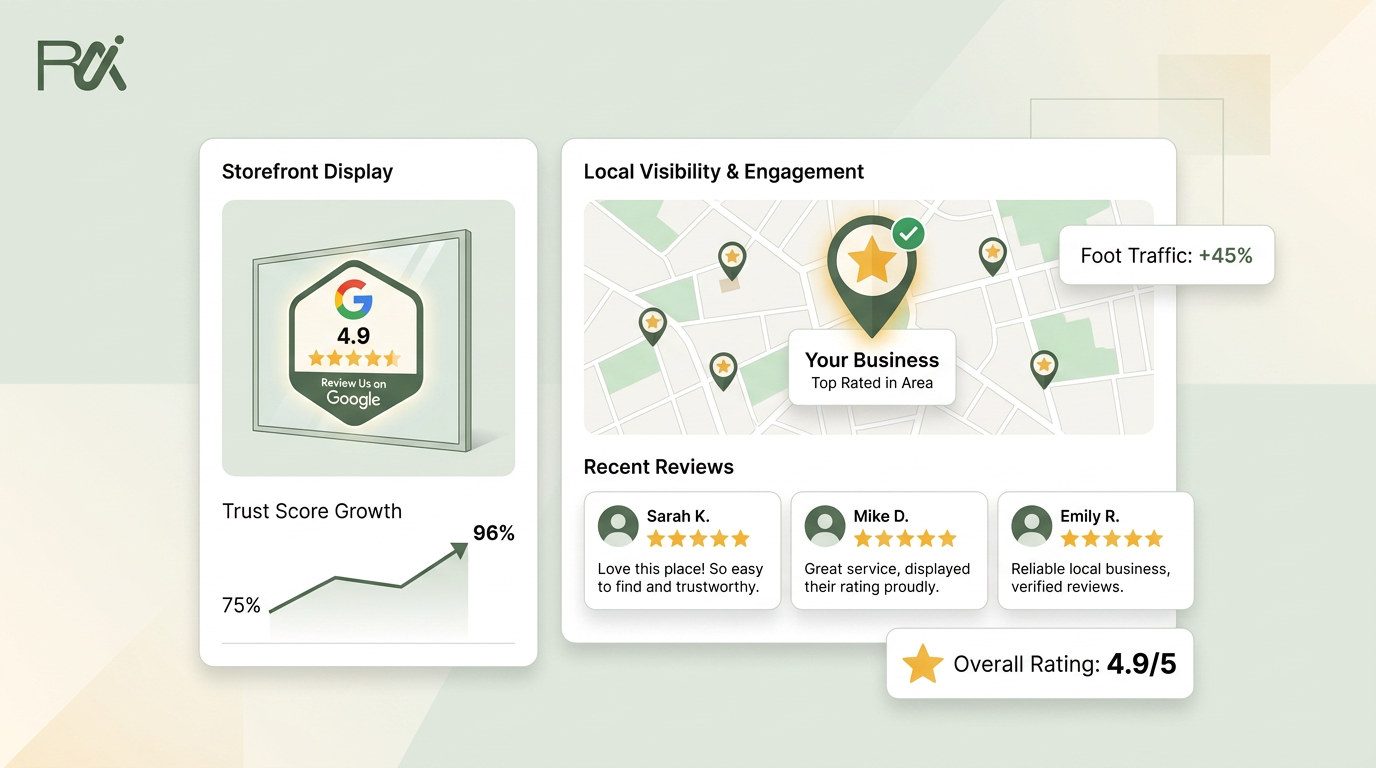
Table of Contents
- 1Introduction
- 2Why Local Businesses Are Putting Stickers on Counters and Receipts
- 3Getting Your Google Review Link and QR Code the Right Way
- 4Test before you print
- 5Designing a Sticker People Will Scan
- 6Choose reliability over decoration
- 7Where to Put Stickers So They Get Scanned
- 8What Google Allows When You Ask for Reviews
- 9Keep the invitation neutral
- 10Turning Stickers Into a Steady Review Routine
- 11Keep the operating burden small
- 12Your Next Step This Week
Introduction
Saturday lunch is usually the wrong time to remember review requests. The line is out the door, the card machine is beeping, and your cashier is trying to keep orders moving. Meanwhile, someone in that line is searching Google Maps for the next restaurant, salon, clinic, or contractor they might use.
You may have served that person well, but the request comes too late if nobody asks before they leave. A printed Google review sticker gives you a simple bridge from the completed visit to your Google Business Profile. The key isn't printing a square code and hoping for the best. It's sending customers to the right review form, at the right moment, with wording they understand.
Why Local Businesses Are Putting Stickers on Counters and Receipts
A restaurant owner sees the same pattern during a busy service. Customers finish eating, wait for the check, pay, and walk toward the door. The team is focused on clearing tables and serving the next party. A cashier may remember to ask for a review, but the request often disappears under the pressure of the shift.
A sticker on the receipt or counter stays in front of the customer during that brief window. Their phone is already nearby. They've just experienced the food and service. Scanning takes less effort than remembering to search for the restaurant later.
Google says local results mainly depend on relevance, distance, and prominence. Google also identifies review quantity and positive ratings as factors that can help a business's local ranking, as explained in this local review and ratings strategy guide. That matters when someone searches for a business “near me” and compares the listings shown in Google Maps.
The sticker solves a timing problem that other methods often leave open:
The same principle works in a salon, clinic, hotel, or service business. A client sees the sticker while checking out. A patient sees it at the checkout desk. A hotel guest sees it in the room folder. A contractor can place it inside a warranty packet after the work is complete.
Practical rule: Put the request where the customer is already holding a phone, not where your staff hope the customer will look later.
Google now provides an official review-request flow with both a shareable link and a downloadable QR code inside the Business Profile interface. That makes QR-based review collection part of a native Google workflow rather than a workaround built around an unrelated homepage link. You can also find broader ideas about why online reviews are more important than ever, but the operating lesson is simple: capture the request before the customer reaches the parking lot.
- A verbal request depends on staff memory. One busy shift can erase the process.
- A generic email may arrive after the customer has moved on. It can also be overlooked among unrelated messages.
- A paper feedback card creates another task. Many customers won't complete it after they leave.
- A direct QR prompt appears at the handover point. The customer can act while the experience is still fresh.
Getting Your Google Review Link and QR Code the Right Way
Use Google's own review destination. Don't send customers to your homepage, a general contact page, or a third-party redirect that adds another decision.
Google's current help flow lets you create the review request from your Google Business Profile. The path is straightforward:
Google's support documentation describes the same basic action, selecting Get more reviews, then copying the link or saving the QR code. The official Google review-request workflow also supports other formats, including receipts, email, chat follow-ups, and in-store displays.
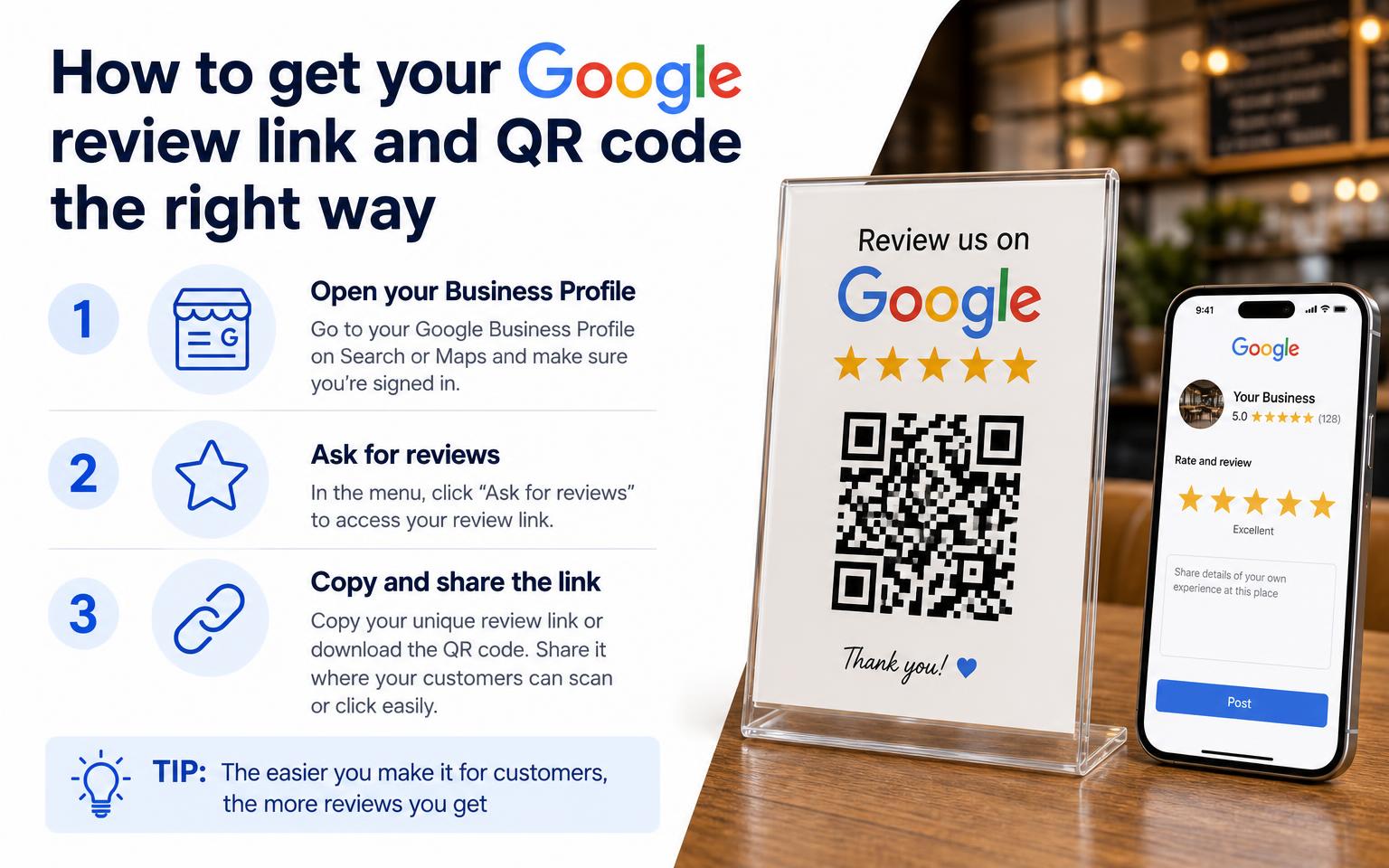
- Sign in to the Google account that manages the profile.
- Open the Business Profile dashboard. On desktop, start from Google Search or the Business Profile management area.
- Open Home.
- Find Get more reviews.
- Copy the shareable review link or save the QR code image.
Test before you print
Open the link on a phone that isn't already signed in as the business owner. Confirm that it takes a customer to the business's Google review form. If the link opens a profile page without an obvious review action, stop and correct it before sending artwork to a printer.
For owners who manage the profile from Google Maps, Google provides a route through Customers, then Reviews, then Get more reviews. Google also documents the review request option from the Business Profile interface, so the exact button placement may vary with the device and current version.
Save the link in a notes app and bookmark it in your browser. Keep the QR code as a high-resolution PNG. Before printing, check that the destination begins with `google.com/maps`, then scan the final artwork from a phone. A practical overview of client growth with QR codes can help when you're deciding how to reuse the same code across printed and digital touchpoints.
For a technical walkthrough focused specifically on Google review codes, see this Google review QR code guide. Use the official Google-generated destination as your starting point, then design the sticker around it.
Designing a Sticker People Will Scan
A QR code can be technically correct and still fail in practice. Common causes include a code that is too small, weak contrast, glare from the surface, or wording that does not tell customers what scanning will open. The design needs to connect the code with the full path to Google's review form.
Start with size. For a small sticker, print at least one inch of QR code, then make it larger when people will view it from a distance or at an angle, following practical print guidance from TrueReview's review sticker recommendations. A larger code gives a phone more room to recognize the pattern, especially on a counter card or wall sign. Do not shrink it to preserve a decorative logo.

Choose reliability over decoration
Use dark QR modules on a light background whenever possible. Branded green, red, or gold can look attractive, but light colours and poor lighting can reduce scan reliability. Keep the code off photographs, wood grain, textured patterns, and busy illustrations.
Match the material to the surface:
Leave a clear white border around the code. This space helps scanners separate the QR pattern from nearby text and graphics. Put the call to action beside or below the code, never across the scan area.
Short copy gives customers the instruction at a glance:
Add the Google logo only if it stays crisp at the final print size. A blurry logo can reduce trust rather than add recognition.
Give the printer a short production checklist:
Timing and wording affect whether a customer responds. This guide to the psychology behind customer reviews explains the customer perspective behind review requests.
- Matte paper labels suit dry indoor uses such as business cards and takeout packaging.
- Vinyl handles counters, menus, and regular wiping better than ordinary paper.
- Laminated polyester suits places exposed to moisture, grease, or outdoor conditions.
- Scan to leave a review
- Enjoyed your visit? Scan
- Share your Google review
- Tell us how we did
- High contrast: Dark code on a light, non-patterned background.
- Clean border: Preserve white space on every side.
- Durable stock: Choose vinyl or laminate for frequently wiped surfaces.
- Final-size test: Scan the printed proof, not only the digital file.
- Readable copy: Keep the instruction short and visible.
Where to Put Stickers So They Get Scanned
The best wording won't rescue a bad location. A customer has to notice the sticker while the phone is already accessible and the visit is still on their mind.
Restaurants should test the back of the receipt, a table tent, or the inside of a menu near the closing page. The receipt works because the customer is waiting for the check or reviewing the charge. A table tent can work well at a table where guests have time to read it. Use copy such as “Enjoyed your meal? Scan to review.”
Salons and barbershops should put the sticker near a mirror at eye level, not hide it below the front counter. Customers naturally check their haircut or finished style before leaving. Try “Love the result? Scan to review.”
Clinics can place a small code at checkout and on the consultation-room exit door, provided it doesn't interfere with privacy or patient instructions. Use neutral language such as “Share your visit feedback on Google.”
Hotels have several useful handover points. The in-room folder, front desk counter, and key card sleeve can all carry a clear prompt. A suitable line is “Enjoyed your stay? Scan to review.”
Contractors and other service businesses can use a sticker on the final walk-through folder, tablet, or warranty packet. Add the same review link to the follow-up email, with wording such as “Work completed? Share your Google review.”
| Business Type | Best Spot | Worst Spot |
|---|---|---|
| Restaurant | Receipt back, menu, or table tent | Low wall near the restroom |
| Salon | Eye-level mirror or checkout card | Floor-level counter panel |
| Clinic | Checkout desk or consult-room exit | Anywhere that exposes private information |
| Hotel | Room folder or key card sleeve | Glare-heavy exterior window |
| Contractor | Walk-through folder or warranty packet | Buried inside unrelated paperwork |
Restaurant
Salon
Clinic
Hotel
Contractor
Avoid locations below counter height, behind reflective glass, or on windows where direct sun washes out the code. A sticker taped to a window may look visible from outside but still scan poorly because of glare and changing light.
Use one placement per business type during the first test. Don't cover every surface at once. If the restaurant's receipt sticker gets attention but the menu code doesn't, keep the stronger location and remove the clutter.
What Google Allows When You Ask for Reviews
Google allows businesses to ask customers for reviews, but the request must be honest and unbiased. Google prohibits incentives such as money, discounts, free goods, or anything else offered in exchange for a review, as described in this Google review policy guide.
That rule applies to printed prompts. A sticker isn't exempt because it's passive or inexpensive. You can place the same request on every receipt, package, table, room, or customer handover. You can't give it only to people who appear pleased.

Keep the invitation neutral
Compliant wording gives the customer a choice and doesn't promise a reward:
| Appropriate wording | Risky wording |
|---|---|
| “Scan to share your feedback” | “Scan for a discount” |
| “If you'd like, leave us a Google review” | “Leave five stars for a reward” |
| “Tell us about your visit” | “Only happy customers should scan” |
“Scan to share your feedback”
“If you'd like, leave us a Google review”
“Tell us about your visit”
Don't ask customers to exchange reviews with one another. Don't write reviews for them, copy and paste a prepared statement, or pressure them to describe the visit in a particular way. Google also prohibits fake engagement, including fake reviews and review exchange schemes.
Review gating creates another policy problem. You must not decide who sees the Google option based on whether the customer had a good experience. Every customer should receive the public review option, and any private feedback option should sit alongside it as a genuine choice, not as a route that hides negative opinions from Google.
Before ordering a large batch, check Google's current review management guidance. Policies and interface details can change, so don't rely on an old sticker template or a printer's generic review language.
Turning Stickers Into a Steady Review Routine
A sticker works better as one part of a routine than as a lonely piece of printed material. The routine should use the same direct Google review link across the receipt, follow-up email, and text message, so customers don't have to search for your business again.
For a restaurant, the process can look like this:
A salon can trigger the email from its booking system after an appointment. A clinic can use its patient communication workflow, subject to its privacy and consent requirements. A contractor can put the code in the warranty packet and send the link after the job is closed.

- Receipt prompt: Print the sticker or QR prompt on the back of the receipt.
- Thank-you email: Send a short email after the visit with the same review link.
- Text follow-up: Send a polite SMS later if your system supports it and the customer has consented to receive messages.
- Staff mention: Train staff to mention the option without demanding a review.
Keep the operating burden small
Load the templates once, then assign each message to an existing event such as payment, appointment completion, checkout, or job closure. The owner shouldn't have to remember every request during a busy day.
Print material also needs an operating decision. Use wipeable vinyl in a greasy kitchen, a clean matte label for a dry retail counter, and a protected version for an outdoor contractor packet. Keep a spare file of the QR code and its destination so staff can replace damaged stickers without redesigning the whole piece.
Google's built-in workflow provides the shareable link and QR code directly from the Business Profile. If the profile destination changes or the code no longer opens the review form, pause printing and test the saved link again. A regular scan check is more useful than assuming a code will work forever.
Your Next Step This Week
Finish one small test before next weekend. Don't order a large run before you know whether customers notice the sticker at the point of service.
Open your Google Business Profile and follow this path:
Order a small batch of 50 vinyl stickers in one size. Keep the design plain, with a dark code, light background, short instruction, and enough white space. Test one placement for each location type: counter front for salons, table tent for restaurants, receipt footer for clinics, and a door hanger or warranty packet for contractors.
By Monday, you should have two concrete deliverables: stickers in hand and one scan count recorded for the test placement. If the workflow calls for automated follow-up after the scan, RecensioAI can send review requests by text or email while keeping the public Google review option and private feedback option side by side for the customer to choose.
---
RecensioAI B.V. helps local businesses manage review requests through email, SMS, QR codes, and shareable links, with tools for Google Business Profile audits and multi-location workflows. Visit RecensioAI B.V. to see whether its review workflow fits the sticker process you're setting up.
- Profile dashboard: Sign in to the account that manages the listing.
- Get more reviews: Open the review-request module.
- Create short link: Copy the official shareable review link.
- Generate the QR: Save Google's QR code, or use a reputable QR generator after confirming that the destination is the direct Google review form.
You might also like
Handpicked articles for you
Hotel Review Management: Automate Post-Stay Requests with Apaleo, Mews and Your PMS
A practical guide to turning hotel checkouts into timely review requests, with Apaleo live, Mews early access and flexible PMS alternatives.
Why the Business Around the Corner Beats You on Google: What 21,373 Profiles Reveal
We compared 21,373 Google Business Profiles with their three strongest nearby competitors. The gap is smaller than most owners think, but it has two sides: rating and volume.
Treatwell Review Management for Salons: One Reputation View Alongside Google
Bring your public Treatwell rating and recent reviews into RecensioAI, then combine salon signals with Google for faster, better decisions.