
Google Business Profile Setup: A Practical Guide for 2026
Step-by-step Google Business Profile setup for local owners. Learn verification, optimization, and key tips to boost map visibility.
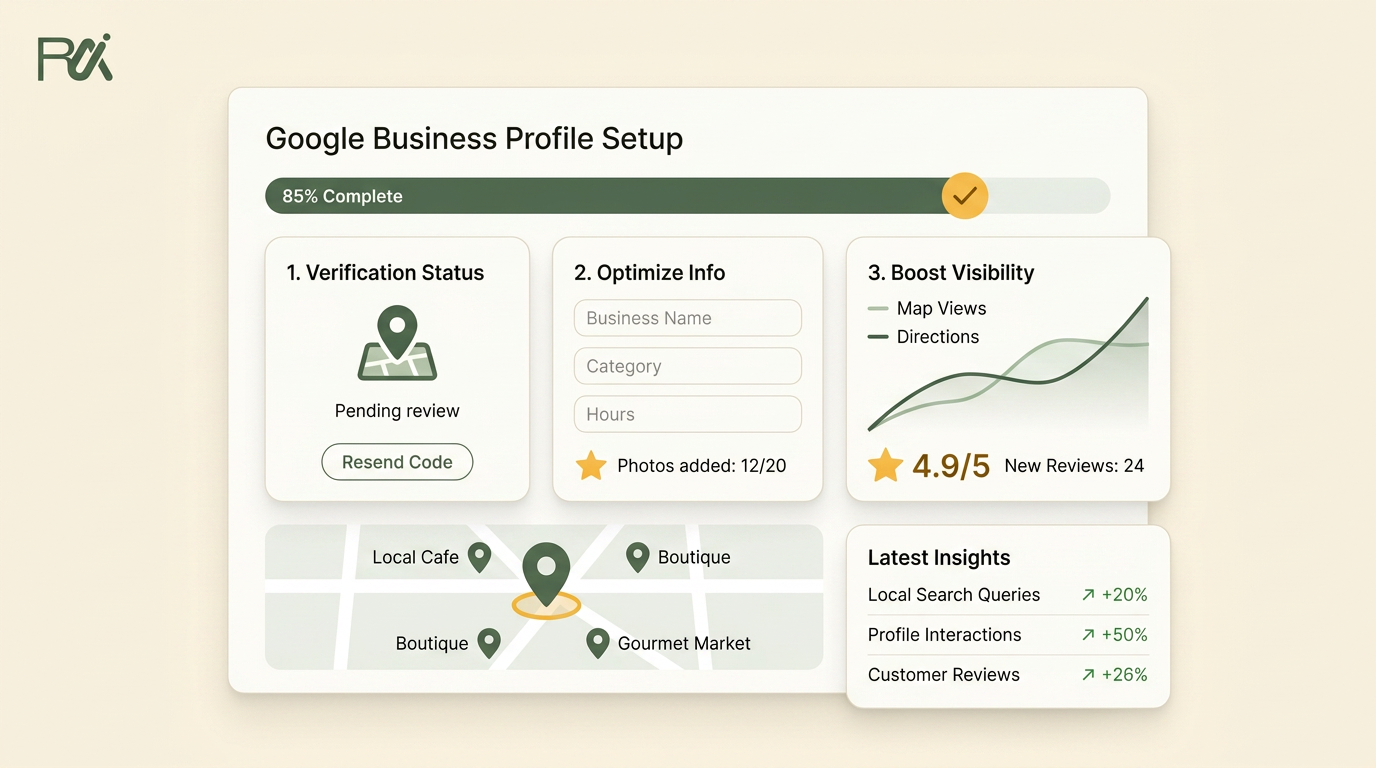
Table of Contents
- 1Introduction
- 2Why Most Profiles Stay Invisible After Setup
- 3Creating or Claiming Your Profile
- 4Check for an existing profile first
- 5Match the setup to the business type
- 6Use the right account from the start
- 7Verification Options and What to Expect
- 8Pick the method Google offers you
- 9Expect the waiting, not a shortcut
- 10If verification fails
- 11Filling Out the Fields That Actually Matter
- 12Start with the name, then stop
- 13Choose the most specific category you can defend
- 14Set service area and hours like a real operator
- 15Write the description for people, not for stuffing
- 16Moving Beyond Basic Setup to Real Optimization
- 17The first 30 days matter more than the first day
- 18Keep activity visible
- 19Use reviews as trust, not theater
- 20Common Setup Mistakes and How to Fix Them
- 21Clean up duplicates and mismatched details
- 22Match the storefront to the business model
- 23Change the category if it's off
- 24Fix the old hours and phone number today
Introduction
You can claim a Google Business Profile in ten minutes and still miss the phone calls that matter. That happens all the time. A restaurant in a busy neighborhood, a salon on a main street, or a plumber covering a few suburbs has a profile, but it still isn't showing in the local pack when someone searches near me on Google Maps. The problem usually isn't that the listing exists. It's that the profile stopped at basic setup and never became a complete, maintained asset.
Why Most Profiles Stay Invisible After Setup
A lot of owners think verification is the finish line. It isn't. Google's own setup flow treats Business Profile creation as a create-or-claim process, and its support docs make Performance data available inside the profile so you can see how people found the listing and what they searched for to get there. That tells you exactly how Google sees the profile, as something to manage over time, not a one-and-done directory entry. Google's Business Profile support page makes that clear.

A restaurant that has only its name, address, and hours filled in looks thin next to one with food photos, menu services, current hours, and a steady flow of reviews. A salon with no service list or recent photos feels unfinished. A contractor with a vague category and an outdated phone number is even worse, because the customer can't tell if the business still operates or serves that area.
Practical rule: if your profile would look unfinished to a stranger scrolling on mobile, Google's map results usually treat it that way too.
The gap shows up in the market, too. One industry survey found just 11% of businesses consider their profile fully optimized, while 26% say they've only completed basic setup and 13% aren't actively managing it at all, with 60% falling into basic, inconsistent, or unmanaged states. Another roundup reported about 41% of small local businesses still have incomplete profile information and around 39% have outdated hours, phone numbers, or address details. That's the trap. The profile exists, but it doesn't give Google or customers enough confidence to surface it consistently. The local visibility audit checklist is a useful companion if you already have a listing and want to check where it's weak.
Creating or Claiming Your Profile
Google gives you two paths, and the right one depends on whether the profile already exists. If your business doesn't appear on Search or Maps, you can start at business.google.com/add, click Add your business to Google, follow the prompts, and then choose a verification option. If a listing is already there, you're claiming control of it, not creating a second one.

Check for an existing profile first
Search your exact business name on Google Search and Google Maps before you add anything. If you see the listing, that's the one to claim. Creating a duplicate is a bad trade, because duplicates split signals and create confusion about which location, phone number, or address should appear.
Match the setup to the business type
A storefront, like a café or clinic, should reflect a real customer-visit location. A service-area business, like a plumber or mobile detailer, needs a different setup path because the work happens at the customer's location. A hybrid business, like a restaurant that also delivers or a clinic that sees patients in-office and at satellite sites, has to keep those details straight so the profile doesn't blur public access with service coverage.
Use the right account from the start
Google says you need a Google Account to create and manage the profile, and it can be a new Gmail address or an existing Google Account tied to another email address. Google's account guidance matters here because ownership gets messy when staff members use personal inboxes that nobody controls later. Pick the account the business will keep, not the one that's easiest today.
A clean claim now is cheaper than cleaning up a duplicate, a suspension, or a lost login later.
Verification Options and What to Expect
You do not get full control of a Google Business Profile until verification is complete. Google uses that step to confirm that the person requesting access has a real connection to the business, and it also requires a Google Account before you can manage the profile. Google's verification and account help explains the basic requirement clearly, and it is where ownership and access start to matter.
Pick the method Google offers you
The verification method depends on the profile, the business type, and what Google is willing to show for that listing. You may see phone, email, postcard, or video verification. A storefront such as a restaurant or salon often gets a postcard or video path, while a service-area business usually gets a method that helps Google confirm the business operates where it says it does.
The practical trade-off is simple. A postcard is slower, but it can fit businesses with a public location. Phone or email can move faster if Google offers them, though those options are not guaranteed. Video verification usually asks for more proof on the spot, so be ready to show signage, tools, vehicles, or other evidence that matches the business model.
Expect the waiting, not a shortcut
Postcard verification takes time because the code has to reach the business address before you can finish the setup. Do not plan the rest of the launch around same-day access if that is the method Google gives you. If phone or email is available, the process can move faster, but even then there is usually a short delay before the profile becomes fully manageable.
That waiting period is normal. It is also where a lot of owners get impatient and make bad moves, like changing the address, editing the business name, or asking multiple people to request verification from different accounts.
If verification fails
Start by checking the details you entered. The business name, address, and service model need to match the operation, and the Google Account you are using needs to be the one that should control the profile. If something does not line up, fix the mismatch before trying again.
If the first attempt does not go through, use the next verification step Google provides instead of creating a second listing out of frustration. A duplicate listing creates a bigger mess than a delay, because it can split calls, directions requests, and ownership signals.
Verification keeps fake ownership claims out of the profile. That matters because the listing affects calls, directions, and walk-ins, and those are hard to clean up once they go wrong.
Filling Out the Fields That Actually Matter
The businesses that win local visibility don't treat this as a form. They treat it like a customer decision page. Google's guidelines say the business must be represented as it's consistently and publicly recognized, with an accurate address or service area and the fewest categories needed to describe the core business. Google's profile guidelines are the right place to start, because everything else hangs off those choices.

Start with the name, then stop
Use the exact business name customers already know. Don't stuff the name with city names, services, or slogans. A bakery called Oak Street Bakery should stay that way, not become Oak Street Bakery Best Cakes Wedding Orders Downtown. That kind of padding breaks trust and can create problems with Google's review of the listing.
Choose the most specific category you can defend
Category choice is one of the earliest relevance signals. A pediatric clinic should not sit under a broad medical label if a more specific category fits. A roofing contractor needs a category that tells Google exactly what type of business it is, not a general home services catchall. The point is to be accurate, not broad.
Set service area and hours like a real operator
Contractors, plumbers, cleaners, and mobile businesses should keep service areas realistic. Don't spread the map wider than you serve, because that creates bad expectations and muddy location signals. Holiday hours matter too. If you're closed on a bank holiday, change it. Customers remember the drive they made to a shut door.
Write the description for people, not for stuffing
The description should explain what you do, who you serve, and what makes the business easy to choose. A salon can say it offers color, cuts, and extensions for neighborhood clients. A clinic can say it handles family appointments and walk-ins by schedule. Keep it readable. If it sounds like it was written to impress a search engine, it usually reads badly to a customer.
Moving Beyond Basic Setup to Real Optimization
A verified profile that sits unchanged is a missed opportunity. Google's setup page lets owners monitor Performance, which makes sense because the profile is meant to be active. The businesses that look alive inside Google Search and Maps usually keep adding useful content after launch, while the quiet ones fade into the background. Google Business Profile setup points owners toward that ongoing use, not just verification.
The first 30 days matter more than the first day
Add at least a solid set of photos, finish the services section, and make review requests part of the normal workflow. Third-party setup guidance consistently recommends at least 10 high-quality photos, and UENI's 2026 guidance points to the most specific primary category, a complete description, at least 10 photos, accurate regular and holiday hours, and 10+ Google reviews averaging above 4.5 stars as high-ROI targets. That 4.5-star mark is an expert benchmark, not a Google rule, but it reflects how customers tend to read a profile that looks active and credible.
Keep activity visible
Google Posts help show the profile isn't abandoned. A restaurant can post a lunch special, a salon can post a seasonal service update, and a contractor can post a recent project type or a booking reminder. The point isn't to spam the listing. It's to show customers and Google that the business is open, current, and worth clicking.
Use reviews as trust, not theater
Reviews matter because customers trust businesses that look real and responsive. Responding to reviews, especially the awkward ones, gives future customers a better read on how the business handles problems. Review generation also works best when it's consistent and honest. If you want one place to manage the flow, RecensioAI's optimization checklist can help you track what's missing without turning the profile into a side project nobody remembers.
Common Setup Mistakes and How to Fix Them
Most bad profiles don't fail because of one big mistake. They fail because of a few small ones stacked together. A wrong category, an outdated phone number, and a service area that doesn't match reality are enough to make the whole listing look shaky. If the profile isn't getting traction, start with the basics, not with fancy tweaks.

Clean up duplicates and mismatched details
If you see more than one listing for the same location, fix that first. Duplicates split your calls, directions, and reviews across more than one profile. If your website, profile, and directory listings all show different addresses or phone numbers, Google has less reason to trust the data. Clean the source of truth, then update the rest.
Match the storefront to the business model
A restaurant should show its address if customers visit there. A service-area business should handle its setup differently and avoid presenting itself like a storefront when it isn't one. The wrong setup confuses both customers and Google, and it usually shows up as weak visibility or odd map placement.
Change the category if it's off
If you started with a generic category because it felt safe, revisit it. A more specific category can be the difference between appearing in relevant local searches and blending into the crowd. This is especially true for clinics, salons, restaurants, and contractors where category detail tells Google a lot about intent.
Fix the old hours and phone number today
Outdated hours are one of the fastest ways to lose trust. The same goes for a disconnected number or a voicemail that no longer matches the business. These are not cosmetic issues. They stop customers from taking the next step.
If your listing already exists but still feels weak, the issue is usually maintenance, not creation.
This suspension recovery guide is useful if the profile has been flagged or disappears after a change.
---
RecensioAI B.V. helps local businesses keep Google Business Profile work from slipping through the cracks, including review requests, profile audits, and ongoing post activity. If you want a practical system for keeping the listing complete and active without chasing every task by hand, visit RecensioAI B.V. and see how it fits your locations.
You might also like
Handpicked articles for you
Hotel Review Management: Automate Post-Stay Requests with Apaleo, Mews and Your PMS
A practical guide to turning hotel checkouts into timely review requests, with Apaleo live, Mews early access and flexible PMS alternatives.
Why the Business Around the Corner Beats You on Google: What 21,373 Profiles Reveal
We compared 21,373 Google Business Profiles with their three strongest nearby competitors. The gap is smaller than most owners think, but it has two sides: rating and volume.
Treatwell Review Management for Salons: One Reputation View Alongside Google
Bring your public Treatwell rating and recent reviews into RecensioAI, then combine salon signals with Google for faster, better decisions.