Google Business Profile Not Showing Up in Search: Quick Fix
Is your Google Business Profile not showing up in search? Learn how to fix visibility issues and get found by customers in 2026.
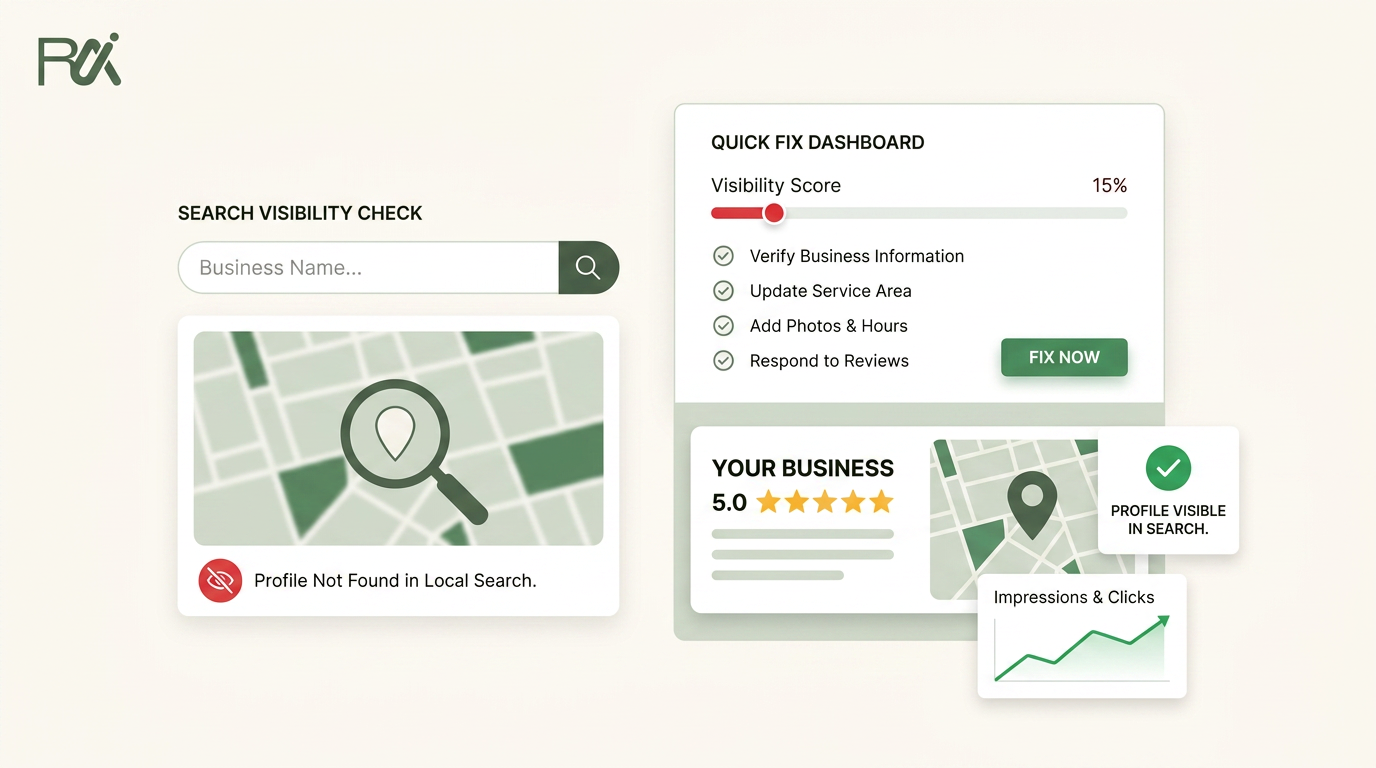
Table of Contents
- 1Introduction
- 2Why Your Business Disappeared From Google Search
- 3The four states that matter
- 4Check Your Profile Status and Verification
- 5What to check in the dashboard
- 6How to test it outside the dashboard
- 7Understand Google's Local Filtering System
- 8Why nearby businesses get filtered
- 9How to tell if filtering is the issue
- 10Improve Your Relevance and Prominence Signals
- 11Tighten the profile so Google knows what you do
- 12Build prominence without faking activity
- 13Avoid Mistakes That Prolong Invisibility
- 14Common mistakes that slow recovery
- 15What to do while Google reindexes
- 16Build a Weekly Routine to Stay Visible
- 17A simple weekly cadence
Introduction
You can type your business name into Google and still see nothing. No map listing. No directions button. No knowledge panel. If you run a restaurant, salon, clinic, hotel, or contracting company, that usually means one of four things, and each one needs a different fix. The mistake most owners make is treating every invisible profile like a simple verification problem.
Sometimes the profile is suspended or marked not visible to the public. Sometimes it's verified, but Google still hasn't processed it cleanly. Sometimes Google is filtering it out of map results because a nearby business looks too similar. Sometimes the profile is live, but it's just ranking too weakly for the searches you care about. The job is to figure out which state you're in before you touch anything else.
Why Your Business Disappeared From Google Search
You search your restaurant name and nothing comes up. Not even the exact name. A salon owner sees the same thing after changing hours and photos. A contractor checks from a job site and the listing is gone from both Search and Maps. That usually means the profile didn't just “drop.” It moved into one of a few different states.

The four states that matter
A profile can be suspended or marked not visible to the public, which means Google has already restricted it. It can also be unverified or still processing a recent verification step, so it exists in the system but isn't ready to surface. Google support also makes clear that a profile can be verified and still not appear in Search or Maps, which points to a visibility problem rather than a verification problem. See the diagnostic distinction in the Google Business Profile Help thread on discoverability.
Then there's filtering. A clinic in a medical office building may be complete and correct, yet still lose visibility if Google thinks another nearby listing is a better match. A salon inside a shared suite can run into the same issue when categories, address signals, or duplicate-like details overlap. That's where Google's local system matters more than the profile itself.
Finally, the profile may be live but too weak to show for the searches that matter. A contractor might show up for the business name but not for “roof repair near me.” A hotel might appear only when someone searches its exact brand, not a broader neighborhood term. That's not a broken listing. That's a ranking problem.
If you want a useful field guide before you touch the dashboard, the Solo AI Website Creator guide on Google Business Profile optimization is a solid reference for the basic cleanup work most owners skip.
Practical rule: start by asking, “Is Google hiding it, delaying it, filtering it, or ranking it poorly?” If you skip that question, you usually fix the wrong thing.
Check Your Profile Status and Verification
Before editing anything, open the Google Business Profile dashboard and look at the account state first. You want to know whether Google sees the listing as verified, suspended, or not visible to the public. If you're managing multiple locations, check each one separately. Don't assume one location's status explains another's problem.

What to check in the dashboard
Start with visibility status. Google's own help guidance tells owners to check whether the profile is marked Not visible to the public or Suspended, then look at the Performance report to see whether the listing is earning impressions at all. That matters because a profile can look complete on your end and still be functionally absent in search if no one is seeing it. The support thread that covers this is Google's visibility guidance for Business Profiles.
Then open the Performance or Insights area and look for impression activity over the period you care about. If the profile has been live for weeks and the report still shows nothing, treat that as a visibility signal, not a cosmetic issue. A verified profile with zero impressions is not behaving like a healthy local listing.
A clean dashboard matters less than a visible listing. If the report shows no impressions, you're not done yet.
How to test it outside the dashboard
Search the exact business name in Google Search, then repeat it in Google Maps. Compare the two results. If the listing shows in one place and not the other, that tells you something important about how Google is classifying it. Community guidance also points owners to check whether the direct share link still opens, because a profile can be reachable by link and still fail to appear in normal discovery.
If you recently submitted verification, wait for Google to finish processing before you make more changes. If the profile sits in pending or processing longer than expected, escalate through Google's support path instead of trying to force the issue with edits. For a quick internal checklist, use the Google Business Profile check guide to compare what you see in the dashboard with what customers see in search.
Understand Google's Local Filtering System
A verified profile can still vanish from map results when Google decides another nearby business is a stronger match. That's the part many owners miss. The business is real, the profile is real, but the local system is applying a filter based on proximity and similarity. A salon in a shared building or a clinic in a medical park runs into this more often than people think.

Why nearby businesses get filtered
Google's local system changed in a major way with the Possum update in 2016, which introduced stronger local filters that can suppress one listing when multiple businesses are close together or look too similar. Google's own support discussion on this point also ties local ranking to relevance, distance, and prominence. That combination explains a lot. Your profile can be fixed in one place and still not surface if another business nearby matches the query more clearly or appears more established. The support thread that describes this is Google's explanation of local filtering and ranking signals.
A restaurant in a shared plaza might get filtered under broader food searches if another listing has stronger category signals and more recognizable prominence. A contractor with a suite address in a business park may lose visibility to a competitor with cleaner address signals and a more established profile footprint. A medical practice in the same building as several other clinics may not show as often if its profile looks too similar to the others.
How to tell if filtering is the issue
Search the exact service term from the area you serve. Look at which competitors appear in the map results. Then compare your own profile against theirs. Categories matter. Address signals matter. Review activity matters because it contributes to prominence and trust.
If the same nearby businesses keep showing up while your verified profile doesn't, you're probably dealing with a local filter, not a broken listing.
Also compare Search versus Maps. Some businesses show more easily in one surface than the other, especially when Google is trying to reduce duplication or keep results diverse. That's why “showing up on Google” is not one single state. It's a set of states. A profile can be filtered in one query and visible in another.
For a broader visual on how local visibility works, the embedded explainer video below is worth a look after you've finished the profile check.
Improve Your Relevance and Prominence Signals
You can't move your building closer to the searcher. You can make Google understand the business better. That starts with category choice and ends with the parts of the profile most owners leave half-finished. Google says local visibility depends on relevance, distance, and prominence, and the first and third are the ones you can influence directly. The core guidance is in Google's local ranking factors documentation.

Tighten the profile so Google knows what you do
Start with the primary category. It has to match the actual business, not the one you wish you were ranking for. Add only relevant secondary categories. A salon that also offers bridal makeup can include that service if it's truly offered, but it should still present as a salon first. A clinic should not try to look like a general wellness center if that blurs the service match.
Then complete the rest of the profile. Fill in services, attributes, hours, business description, and location details. Use photos that show the actual entrance, interior, and signage. That helps both customers and Google connect the listing to a real place, not a vague business name floating in a database. If you want a broader checklist of what operators usually miss, the proven GBP optimization tactics guide is useful as a practical reference.
Build prominence without faking activity
Prominence is partly about how well-known the business is, and Google uses the signals it can observe. Real review activity matters here. So does how complete the profile looks and how consistently it stays updated. Responding to reviews helps with trust and engagement. It doesn't magically force rankings, but it does make the profile look maintained and active.
Google Business Posts also help the profile look current. A hotel posting seasonal updates, a clinic sharing hours, or a contractor posting service notes gives the listing more context. That matters when people compare you against nearby competitors with similar service lines.
Operator note: when a profile is thin, Google has less to work with. When it's complete, current, and specific, you give the system a much cleaner match to rank against local intent.
If you're comparing ranking factors across a few locations, the internal breakdown in this 2026 GBP ranking factors guide can help you separate the signals that matter from the ones people talk about too much.
Avoid Mistakes That Prolong Invisibility
When a profile disappears, the temptation is to keep poking at it. That usually makes things worse. Google support and community guidance both point to a simple pattern. Check exact-name search. Compare Search and Maps. Look at impressions after edits or duplicate removal. Then stop touching it long enough for Google to process the changes. The support thread that captures this behavior is Google's guidance on profiles that stay invisible after verification.
Common mistakes that slow recovery
Repeatedly editing the business name or address can reset the review process. Submitting multiple verification requests in a short period can create more delays, not fewer. Creating a duplicate profile to “force” visibility can split signals and confuse the system further. If you run a restaurant or clinic, that can also create customer confusion when two listings start competing for the same place.
Don't keep reworking a profile every time it fails to appear. Google needs time to reindex clean data.
What to do while Google reindexes
Keep the profile stable. Fix only the parts that are clearly wrong. Don't bounce between categories, names, and addresses just to test ideas. If the issue looks like suspension or a structural problem, use the proper support path rather than trying to out-edit the system. The right move is usually patience plus a clean profile, not frantic activity.
If you need a plain-language walkthrough for the suspension side of the problem, the Google Business Profile suspension guide is the right internal reference to keep nearby. It's better to resolve the root issue once than to stack more problems on top of it.
Build a Weekly Routine to Stay Visible
A Google Business Profile isn't something you fix once and forget. Profiles go quiet. Photos get stale. Reviews slow down. Small gaps add up, especially for local searches and near me queries where freshness and prominence matter. The cleanest operators keep a short routine and don't let the listing drift.
A simple weekly cadence
Once a week, open the Performance report and check whether impressions still look healthy for your core searches. Add one Google Business Post if you have a meaningful update, a season change, a staffing note, or a service reminder. Respond to new reviews. Then look at your top three search queries in Google Search and Maps so you can catch visibility slips early.
If you handle this for one location, it's manageable. If you handle several, it becomes easy to miss. That's where tools that automate the routine can help. RecensioAI B.V. is one option that runs review requests, AI-powered review responses, and Google Business Post generation so the profile keeps moving without living on your desk every day.
The main point is simple. A listing that stays current is easier for Google to trust and easier for customers to find. That matters whether you're trying to show up for your brand name, your service term, or the local searches that bring in walk-ins and calls.
---
If your Google Business Profile isn't showing up, RecensioAI B.V. can help you keep the profile active with automated review requests, review responses, and Google Business Post generation. Visit RecensioAI B.V. to see how it fits the visibility work local businesses have to keep doing.
- Check impressions: Look for sudden drops in the Performance dashboard before they become a customer problem.
- Post something current: A short update is enough if it's real and timely.
- Reply to reviews: Keep the conversation moving and the profile looking maintained.
- Watch your map position: Compare your key queries against the same local competitors each week.
You might also like
Handpicked articles for you
Hotel Review Management: Automate Post-Stay Requests with Apaleo, Mews and Your PMS
A practical guide to turning hotel checkouts into timely review requests, with Apaleo live, Mews early access and flexible PMS alternatives.
Why the Business Around the Corner Beats You on Google: What 21,373 Profiles Reveal
We compared 21,373 Google Business Profiles with their three strongest nearby competitors. The gap is smaller than most owners think, but it has two sides: rating and volume.
Treatwell Review Management for Salons: One Reputation View Alongside Google
Bring your public Treatwell rating and recent reviews into RecensioAI, then combine salon signals with Google for faster, better decisions.