Google Business Profile Not Showing Up: How to Fix It
Google Business Profile not showing up? Follow real diagnostic steps to find out why, from verification to suspensions, and get your listing back in search.
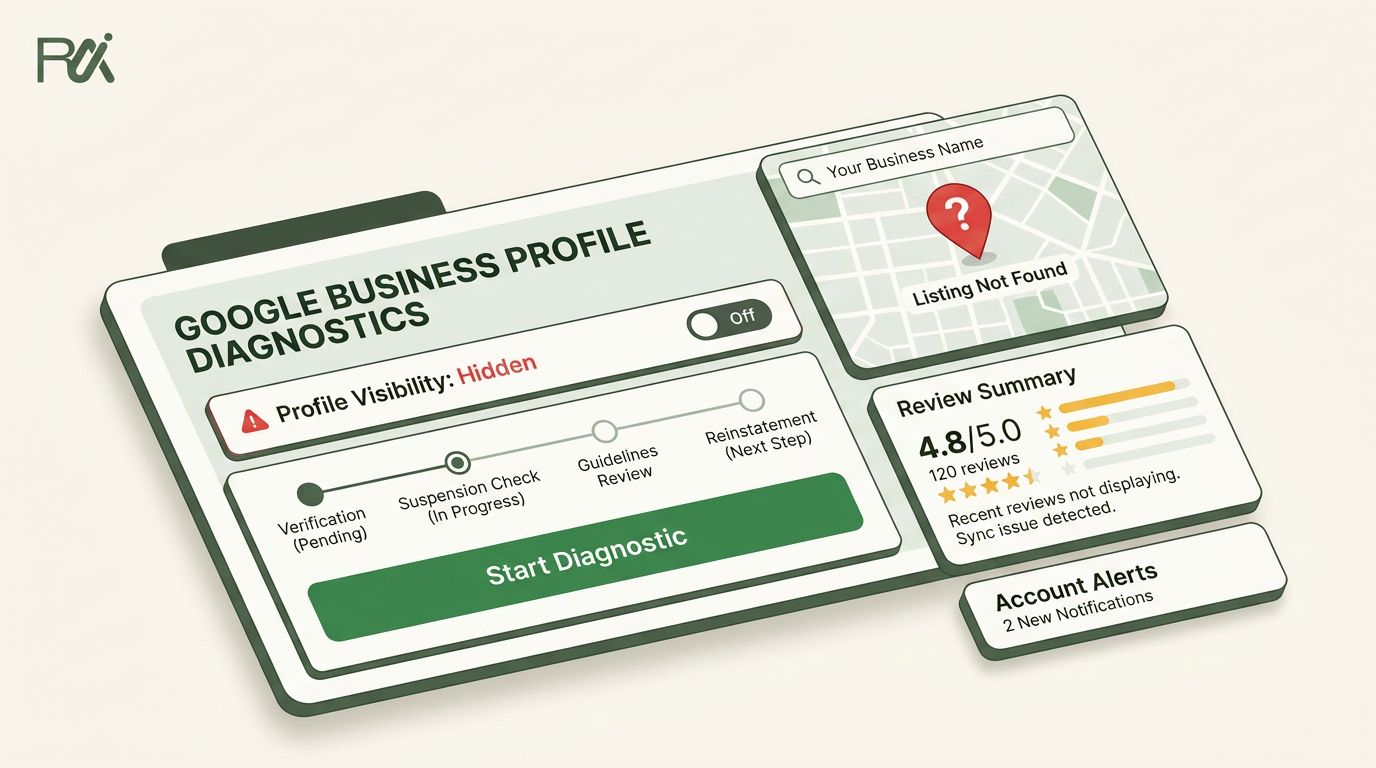
Table of Contents
- 1Introduction
- 2When Your Business Disappears From Google Maps
- 3The Five Minute Dashboard Check
- 4Read the status before you edit anything
- 5Check the basics that people skip
- 6Verified but Still Invisible The Hidden Causes
- 7Recent edits can push the profile into review
- 8Suspension, restriction, and policy review are real causes
- 9Filtering can hide you in dense markets
- 10Pins, duplicates, and category choice still matter
- 11Service Area Businesses That Cannot Be Found Nearby
- 12Get the service area shape right
- 13Choose the right visibility mode
- 14Watch the Performance tab for query fit
- 15When to Escalate and How to Reach Google Support
- 16Send the right information the first time
- 17Know what to expect next
- 18Keeping Your Profile Visible After the Fix
- 19Use a simple operating table
Introduction
You type your business name into Google on your own phone, and nothing comes back. You try the Maps app. Still nothing. Then you ask a regular customer to search it too, and they get the same blank result. That's the moment most owners realize this isn't about ranking lower on page one. The profile feels gone.
For a restaurant, that means diners searching before they leave home won't find the map listing they expect. For a salon, a clinic, a hotel, or a contractor, it can mean lost calls, lost directions, and lost trust. The fix usually isn't a mystery, but it also isn't one single fix. It's a layered check, starting with the fastest things you can verify and ending with the cases that only show up when Google is holding the profile back. If you want a wider local visibility playbook after this, the Google Business Profile tag archive from DigiVisi Ltd is a useful place to compare notes with other operators. For a deeper local-pack strategy, the internal guide on how to outrank your competitor on Google Maps helps frame the bigger picture once your listing is back.
When Your Business Disappears From Google Maps
A restaurant owner I'd trust with this problem doesn't start by guessing. She stands outside the front door, searches the business name, checks Maps, then asks a customer across the street to do the same. If the listing does not appear at all, that is a different issue from showing up in the wrong spot or sitting below competitors. The profile is either hidden, suppressed, under review, or not being surfaced the way it should be.
That's why this kind of problem needs a sequence. Start with the dashboard, then move to visibility checks, then look at the less obvious reasons Google can keep a verified profile out of sight. Google's own Business Profile help says performance data is measured across views, searches, and actions, and you can review it in the Performance tab or download a report from Business Profile Manager. If the profile shows no impressions or actions, that tells you more than a casual search result ever will. It tells you whether Google is seeing the profile as active at all. Google Business Profile performance data help
For owners, that matters because a “not showing up” complaint can mean three different things. The profile may be absent. It may be visible but buried. Or it may be live in Google's system, yet not surfacing in the map results the way you expect. The check order below follows that reality instead of making you chase the wrong fix first.
Practical rule: if you can't tell whether the profile is live, don't start with photos, posts, or review work. Start with status, impressions, and exact-name testing.
If you manage more than one location, use the same sequence for each profile. It keeps you from wasting time on a location that's fine while the issue sits in another account, another pin, or another category choice.
The Five Minute Dashboard Check

Open Business Profile Manager first, not the public map listing. That dashboard tells you whether Google thinks the profile is published, pending, hidden, suspended, or still under review. A verified profile is also required before you can reliably use insights, so a missing record or a broken profile state can hide the underlying problem. The fastest fix is often just reading the label correctly.
Read the status before you edit anything
If the profile says Not visible to the public, Suspended, Hidden, or something that implies review is still pending, stop there and deal with the account state. If it looks published but still doesn't appear in Search or Maps, use the Performance tab to check for views, searches, and actions over the selected period. Google's own help says those metrics are how you review performance over time, so they're your first proof that the listing is doing anything at all. Google Business Profile performance data help
Then do two quick outside checks. Search the exact business name in an incognito window, and search it again from a different logged-in account or a friend's phone. If you find the listing on one device and not another, that's a clue. If you find nothing anywhere, the profile is likely not being surfaced in a normal way.
Search the exact name first. Don't add city names, service terms, or “near me” language yet. You want a clean yes or no on the actual listing.
Check the basics that people skip
Look at the business name, address, phone number, website, and hours on the profile, then compare them with the website and the major directories you care about. If the NAP details drift, Google can treat the profile as less reliable. If the map pin sits in the wrong place, the business can be treated as a weaker match for nearby searches.
A quick pass through this Google Business Profile check can save time if you want to compare what your profile is missing against the fields that should be complete. Then leave the profile alone if you recently changed it. Frequent edits can slow reindexing and make the diagnostic muddy. Give it a week before you make more changes.

Recent edits can push the profile into review
If you changed the name, address, category, or service area, the profile can be live in your account while still sitting in review behind the scenes. Google community guidance shows owners being told to check for a pending review or verification prompt after edits, because those changes can delay visibility even when the listing is already claimed. Google Business Profile review thread
Suspension, restriction, and policy review are real causes
A suspended or restricted profile may not show in Search or Maps even if the business is open. That's why policy notices in the account matter. If the dashboard gives you a warning, treat it as the main problem, not a side note. A helpful public reference on suspension handling is this suspended-profile guide, because it focuses on the practical cleanup work that usually matters most.
Filtering can hide you in dense markets
When two or more businesses share the same address or similar categories, Google can filter one out of the local pack. That comes up often in crowded buildings, shared suites, medical offices, and multi-tenant retail strips. A support thread specifically points to local filtering when profiles overlap at the same location and recommends checking categories, reviews, and duplicates before expecting recovery. The practical lesson is simple. If you share space, your visibility problem may be competitive suppression, not a broken profile. Google Business Profile local filtering thread
Pins, duplicates, and category choice still matter
A mismatched pin can throw off proximity. Duplicate listings can split signals. A weak primary category can make the profile look less relevant than a competitor's. If you need a second opinion on how hidden profiles behave in practice, the AutoSEO business search guide is worth comparing against your own setup because it focuses on the same visibility gap owners run into.
Operator note: compare your own profile detail score with the top three businesses ranking for the same keyword. If they're cleaner, tighter, and more specific, that gap matters even when your profile is verified.
Service Area Businesses That Cannot Be Found Nearby
Service-area businesses get tripped up in a different way. A plumber, electrician, mobile salon, or contractor can have a verified profile and still miss broader city searches because Google is reading the setup as a nearby match problem, not a simple completeness problem.

The first check is whether the profile is configured like a storefront when it should be configured like a service-area business, or the other way around. A hidden-address setup that is wrong, an oversized service area, or a primary category that doesn't match the on-site work can all make the listing harder to surface. For local-pack searches, proximity can outweigh completeness, so a profile can be well built and still not appear for a broad city query.
Get the service area shape right
Use multiple service areas if that matches how you work. Don't draw a vague giant radius and hope for the best. If you travel to customers, make the service area reflect the places you really serve, not the full map you'd like to own. If you have a public office and customers visit you there, the setup needs to match that reality instead.
Choose the right visibility mode
If the address is hidden, confirm that it should be hidden. If it should be displayed, make sure the public-facing details match the business model. Then check the primary category. A mobile salon that behaves like a home-service business should not be using a category that suggests a storefront first. The same goes for contractors and clinics with field or mobile work.
Watch the Performance tab for query fit
Google's performance data won't tell you everything, but it will show whether the profile is being matched to the kind of searches you expect. That helps separate a bad configuration from a simple distance issue. If the business serves a specific set of neighborhoods, the profile should reflect that in the details, not just in the name or description.
For a local-search perspective on how nearby visibility works for service businesses, the Surnex local search insights page is a useful companion because it focuses on the practical local-result behavior owners see.
If you're still unsure, ask one blunt question. Is this profile trying to represent a place customers visit, or a business that goes to them. That answer controls which fields you change next.
When to Escalate and How to Reach Google Support
If you've checked the dashboard, tested exact-name visibility, and waited through a fresh edit window, the next move is escalation. Roughly five to seven days with no change is the point where support becomes the sensible step, not a panic move.
Send the right information the first time
Inside Business Profile Manager, use the contact options available there first. If you post in the Google Business Profile community forum, write like someone who wants a clean diagnosis. Include the business name, address, a link or clear identifier for the profile, screenshots of the dashboard status, and a short list of what you tested. Say whether you checked incognito Search, Maps, the exact business name, and the Performance tab.
A good forum post gives other people enough to rule things out quickly. A vague one invites generic replies. Be direct about the symptom, the timeline, and whether the profile recently changed. Support threads work better when the facts are tight and the problem is specific.
Know what to expect next
Most routine visibility issues don't need a long back-and-forth. Policy reviews can take longer, especially when Google wants to inspect a recent edit or an account change. If nothing changes after two weeks, a second contact is reasonable. That's especially true if the profile is verified but still has no impressions or is clearly blocked by a warning you've already addressed.
When you do need a reference point for a cleaned-up escalation path, keep the earlier suspension guide handy and mirror the facts you already verified there. It helps keep the support conversation focused on the actual issue instead of starting the whole diagnosis over.
Useful habit: keep one screenshot set for every location, dashboard status, profile details, and search test. It makes support work faster because you're not rebuilding the story from memory.
Keeping Your Profile Visible After the Fix
Once the listing comes back, the job is to keep it from slipping again. The profile needs the same kind of routine attention you give hours, staffing, or ordering. If you ignore it for months, Google has less reason to keep surfacing it cleanly in near me searches and map results.
Use a simple operating table
| What You See | Most Likely Cause | First Action |
|---|---|---|
| Profile is not visible to the public | Hidden, suspended, or pending review | Check dashboard status and policy notices |
| Profile is verified but invisible | Review delay, filtering, pin issue, or duplicate | Test exact-name visibility and compare details |
| Profile shows no impressions or actions | Weak or absent visibility signal | Open the Performance tab and review the timeframe |
| Service business is missing nearby | Service area, category, or proximity mismatch | Review address mode and service area setup |
Profile is not visible to the public
Profile is verified but invisible
Profile shows no impressions or actions
Service business is missing nearby
The long-term habits are straightforward. Keep hours, services, and attributes current. Add photos and posts on a steady cadence. Keep review activity moving, and respond promptly so the profile looks alive to customers. Review count and rating are documented Google local ranking factors, so they matter. Responding to reviews and posting activity should be treated as trust and engagement work, not as tricks that force a ranking jump.
If you want to handle that upkeep without dropping the ball every week, RecensioAI is one option. It runs review requests with a public Google review option and a private feedback option side by side, so customers choose the path they want. That avoids review gating and keeps the process aligned with Google policy.
The best next step is to print or screenshot the table above, then walk one location through it this week. If you manage several profiles, do the same for each one before you make any more edits. Keep the fix simple, keep the record clean, and keep the profile active.
---
If you want a system that keeps the review side and profile maintenance from slipping when the business gets busy, take a look at RecensioAI B.V.. It helps local businesses run review requests, profile upkeep, and recurring Google Business Profile tasks without turning the work into a daily burden.
You might also like
Handpicked articles for you
Hotel Review Management: Automate Post-Stay Requests with Apaleo, Mews and Your PMS
A practical guide to turning hotel checkouts into timely review requests, with Apaleo live, Mews early access and flexible PMS alternatives.
Why the Business Around the Corner Beats You on Google: What 21,373 Profiles Reveal
We compared 21,373 Google Business Profiles with their three strongest nearby competitors. The gap is smaller than most owners think, but it has two sides: rating and volume.
Treatwell Review Management for Salons: One Reputation View Alongside Google
Bring your public Treatwell rating and recent reviews into RecensioAI, then combine salon signals with Google for faster, better decisions.