Google Business Profile Not Publicly Visible? Here's Why
Google Business Profile not publicly visible? Learn the common reasons, how to diagnose them, and the exact steps to get your listing showing again.
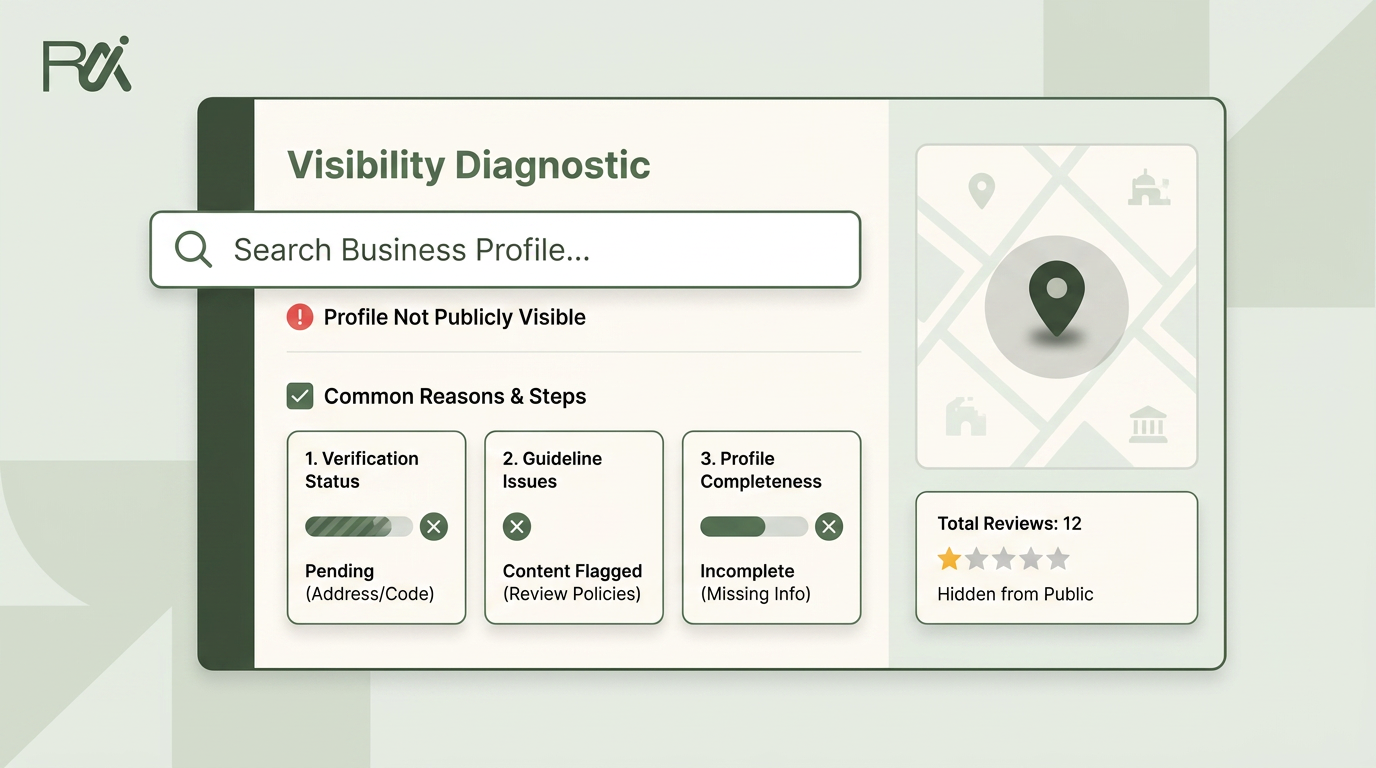
Table of Contents
- 1Introduction
- 2The Moment You Realize Your Listing Disappeared
- 3Three States a Profile Can Be In
- 4Start with the dashboard label
- 5Translate the owner view into a real diagnosis
- 6Check the fields that matter most
- 7Google can approve the profile and still hold it back
- 8Don't keep editing while Google is checking
- 9The problems usually start with the profile itself
- 10What to fix before you appeal
- 11Steps to Get Your Profile Showing Again
- 12Follow the shortest clean path
- 13Keeping the Listing Live After You Get It Back
Introduction
You search your business name and your Google Business Profile still shows up. Then a customer searches the same business name on their phone, or looks for restaurant near me, and you're gone. That's the part that makes owners think the listing vanished, when the problem is usually somewhere between owner view, public indexing, and map ranking.
A google business profile not publicly visible situation is rarely one clean failure. It can be a public visibility problem, a status problem, or a review and trust problem showing up as suppression. Google's own help pages and support threads make that distinction matter because the dashboard can look active while Search and Maps still lag or hide the profile for a while Google Business Profile performance support.
The Moment You Realize Your Listing Disappeared
A restaurant owner checks Google and sees the business name pull up fine. Then a friend searches from across town and the listing never appears in the map results. A salon manager sees the profile in the dashboard, but a customer on a clean phone can't find it for the same search. That mismatch is where the panic starts.
The first instinct is usually wrong. Owners jump straight to editing hours, categories, photos, and posts, but the first job is to separate what you see in Business Profile Manager from what the public sees in Search and Maps. Those are related views, not the same view.
That distinction is what keeps people from chasing the wrong problem. If the profile is visible by exact business name, then you may be dealing with ranking, not visibility. If it doesn't show at all, the issue is deeper, and the fix starts with status, review state, and suppression, not with adding another photo.
For a broad overview of why businesses go missing from map results, the local-search breakdown at VisiLocali local ranking insights is a useful companion read. It helps frame the common failure points without pretending every missing listing has the same cause.
The hard part isn't noticing the listing is gone. It's figuring out whether Google hid it, delayed it, or simply stopped ranking it for the search you care about.
A contractor, a clinic, and a hotel all feel the same frustration when this happens. The public can't find them, calls drop off, and the owner starts changing things blindly. That usually makes the diagnosis worse, not better.
The right move is to slow down and identify the bucket first. Until you know whether the profile is suspended, under review, or live but not ranking, every edit is a guess.
Three States a Profile Can Be In

Start with the dashboard label
The first mistake is treating verified as the same thing as publicly visible. Google's support threads split those ideas for a reason, and that matters the moment you are trying to diagnose a google business profile not publicly visible problem Google Business Profile status guidance.
There are three states worth tracking. Verified and live means the profile is in a normal public state, even if it still needs stronger relevance or prominence. Suspended or disabled means Google has applied an enforcement status, so the profile will not show publicly until that is resolved. Pending review or soft suppression means the profile may still be editable on the owner side, while Google is holding it back during a check or after a change.
The label in Business Profile Manager is the first thing to read, but it is not the whole diagnosis. Verification required points to an unfinished profile. Suspended or Disabled points to a status problem that needs reinstatement handling. Live points to a profile that exists, even if Google is still delaying or limiting how it shows up Google support community guidance on visibility states.

A verified profile can still sit in a review bucket after an address change, category edit, or other trust trigger. That is why status has to be read before anything else. If you treat every bad result as a visibility problem, you end up editing a profile that needs time, review, or reinstatement, not more changes.
For a practical checklist on status checks and profile completion, the RecensioAI B.V. knowledge base on Google Business Profile is a useful reference. It fits this stage of the work, where the goal is to identify the state before you start fixing the wrong thing.
The practical takeaway is simple. Start with status, then decide whether the problem is enforcement, review, or a profile that is live but not surfacing the way you expect.
Translate the owner view into a real diagnosis
When you log into Business Profile Manager, treat each label as a clue. Verification required means Google isn't finished with the profile. Suspended or Disabled means the profile has a status problem that needs a reinstatement path. Published or Live means the profile exists publicly, even if the public result is delayed or thin.
The confusing one is Only visible to you. Google's support thread notes that this is an owner-specific view and doesn't automatically mean the public can't see the profile Google Business Profile support thread on owner-only visibility. That label has misled a lot of owners into thinking they were hidden when they were really looking at a dashboard state, not a public index state.
Check the fields that matter most
After status, look at the basics. Core fields like hours, primary category, address or service area, and open versus permanently closed status need to be complete and correct. A profile can look fine in the manager and still be broken for customers if the primary category is missing, the hours are blank, or the service-area setup doesn't match how the business works.
A clinic with no clear category can feel invisible in search because Google has less context. A salon with stale hours can look unreliable. A contractor with the wrong address setup can trigger soft suppression if the profile mixes a storefront model with a service-area model.
Practical rule: If the dashboard looks normal but customers still can't find you, verify the public result on a clean device before you touch anything else.
The fastest technical check is still the most underrated. Open an incognito window, or use a non-owner phone, and search the business name plus the city. If the name appears, you're usually dealing with ranking. If it doesn't, the problem is visibility, review state, or enforcement.
For owners who want a longer checklist on profile setup and common field errors, the knowledge base at RecensioAI's Google Business Profile guide is a practical reference.
Google can approve the profile and still hold it back
A profile can be verified, look normal in the dashboard, and still fail to show publicly. That usually means Google has the listing in a review hold or under soft suppression, while the owner sees an editable profile state. Community reports describe exactly that split, where the manager view is live but search and Maps show nothing Google support community discussion on public visibility.
The clean way to read it is by cause, not by the word verified. A fresh verification, an address change, a category change, or a service-area edit can all leave the profile visible to the owner before Google finishes its checks. A salon that moves to a new suite can sit in that state while the edit propagates. A clinic that adds a new category can stay hidden until the review clears. A contractor who widens service areas into a new county can trigger another trust check without seeing an error in the dashboard.
Don't keep editing while Google is checking
Patience matters here. Support-community guidance says recent profile changes may take 24 to 48 hours to propagate, and repeated edits can extend the review because each new change gives Google more to process Google support community guidance on propagation and visibility. If the listing is already in a slow review state, another round of tweaks usually makes the delay harder to read, not easier to fix.
Aggressive editing is where owners get themselves into trouble. They change the name, move categories around, add keywords, flip address settings, and then wonder why the profile stays buried. Google treats that pattern like a moving target, especially when the listing already looks unstable.
A better rule is simple. Wait out the propagation window before you make another change, unless the current data is plainly wrong. If you need a separate troubleshooting path for a business not showing up on Google Maps, start with whether the profile is still settling or whether Google has moved it into a hidden review state. Verified only tells you the account passed one gate. It does not tell you the public index has caught up yet.
The problems usually start with the profile itself
Eligibility issues come first. A service-area business that shows a public storefront address, or a storefront business that hides the address without a valid reason, can create trust issues. The fix is to match the profile setup to the actual business model, then leave it that way unless the business moves.
Keyword stuffing in the business name is another common trigger. If a clinic adds practitioner names, specialties, and city terms into the legal name, Google can treat that as a guideline problem. Strip the name back to the business name everywhere it appears on the profile.
Duplicate profiles are a mess, especially for hotels, multi-location brands, and franchises. If a hotel creates separate profiles for booking platforms, entrances, or old departments, Google can treat the duplicates as noise. Merge or remove the extras, then keep one clean profile per real location.
What to fix before you appeal
Address changes can look like relocation spam if the edit is too abrupt or the evidence doesn't line up. A contractor who jumps counties on the service area, or a clinic that suddenly shifts from a suite to a home address, needs to slow down and document the change. Keep business registration, storefront photos, signage, and utility documentation ready if you need to prove the location.
For a broader troubleshooting checklist around business not showing up on Google Maps, the main point is the same. Fix the profile first, then escalate with clean evidence. Don't submit a vague appeal that says the listing “should be visible.” Say what the business is, where it operates, what changed, and why the current profile details are accurate.
Appeal language that works better: “This is the correct business name and location. The profile was edited to match the real storefront and service area. Attached are storefront photos, signage, and business documentation.”
That's the level of clarity Google can work with. Anything fluffier wastes time.
Steps to Get Your Profile Showing Again

Follow the shortest clean path
Start with the owner-side status. If the dashboard says Verification required, finish verification before you do anything else. If it says Suspended or Disabled, go straight into the reinstatement path. If it says Live or Published and the listing still does not appear publicly, stop adding edits and check the public state first.
Clean the core fields only if they are clearly wrong. Make sure the name, address or service area, phone, hours, and category match the actual business. Strip keyword stuffing out of the business name. If the profile is under review, leave it alone and let the queue clear instead of pushing more edits into a stuck listing.
Test outside your own session. Clear the Maps and browser cache, sign out and back into business.google.com, then check the listing from an incognito window or a non-owner device. Google's owner view and public indexing do not always move together, so a clean public check matters more than the dashboard alone.
If the profile is still suspended or disabled, file the reinstatement request with a short, factual explanation. Include the correct business name and address, storefront or signage photos, and a utility bill or business registration if you have it. Keep the appeal plain and specific. If you need help with the reinstatement side, the suspended-profile guide at what to do if your Google Business Profile is suspended lays out the next move without the usual noise.
The Google Business Profile community forum can help when the status looks inconsistent and you want another set of eyes on it. Use direct support or the reinstatement route when the dashboard shows an actual enforcement state. If you are documenting the fix and the next maintenance pass, the checklist at how to optimise your Google Business Profile in 2026 is a useful companion.
If you need a broader view of local visibility work, the guide on brand visibility in AI search is worth reading alongside profile cleanup.
Keeping the Listing Live After You Get It Back
A repaired profile can go quiet again if the basics drift. Keep the core fields current, keep the profile active, and keep the business identity consistent across the web. That gives Google fewer reasons to question the listing and gives customers a clearer match in map results and near me searches.
Three habits do most of the work. Claim and verify once, then keep the ownership clean. Keep hours, category, address or service area, and contact details accurate. Keep the profile active with current photos, posts, and genuine review responses so the listing does not look abandoned.
A lot of operators miss the difference between owner-view status and public indexing. A profile can look fine in the dashboard and still fade in public if the listing keeps drifting from the business details Google expects to see.
Use the maintenance checklist in optimising your Google Business Profile in 2026 as the baseline for that cleanup, then check the profile against the actual storefront, the service area, and the contact details customers see elsewhere. If your listing is one of the profiles that keeps slipping out of view, a structured review from RecensioAI B.V. can help you spot the gaps before Google does.
If you want a broader maintenance pass, the visibility guide at brand visibility in AI search is worth reading alongside local profile work. It helps connect profile upkeep with how your business shows up beyond the map pack.
RecensioAI B.V. offers Google Business Profile audits, review management, and profile maintenance tools for businesses that need the listing kept current without handholding every week. If your profile keeps slipping out of public view, visit RecensioAI B.V. and see whether a structured cleanup fits your location.
You might also like
Handpicked articles for you
Hotel Review Management: Automate Post-Stay Requests with Apaleo, Mews and Your PMS
A practical guide to turning hotel checkouts into timely review requests, with Apaleo live, Mews early access and flexible PMS alternatives.
Why the Business Around the Corner Beats You on Google: What 21,373 Profiles Reveal
We compared 21,373 Google Business Profiles with their three strongest nearby competitors. The gap is smaller than most owners think, but it has two sides: rating and volume.
Treatwell Review Management for Salons: One Reputation View Alongside Google
Bring your public Treatwell rating and recent reviews into RecensioAI, then combine salon signals with Google for faster, better decisions.