Google Business Profile Booking Link Guide for 2026
Learn how to add a direct booking link to your profile. Capture more quotes and appointments from Google Search and the new AI Mode.
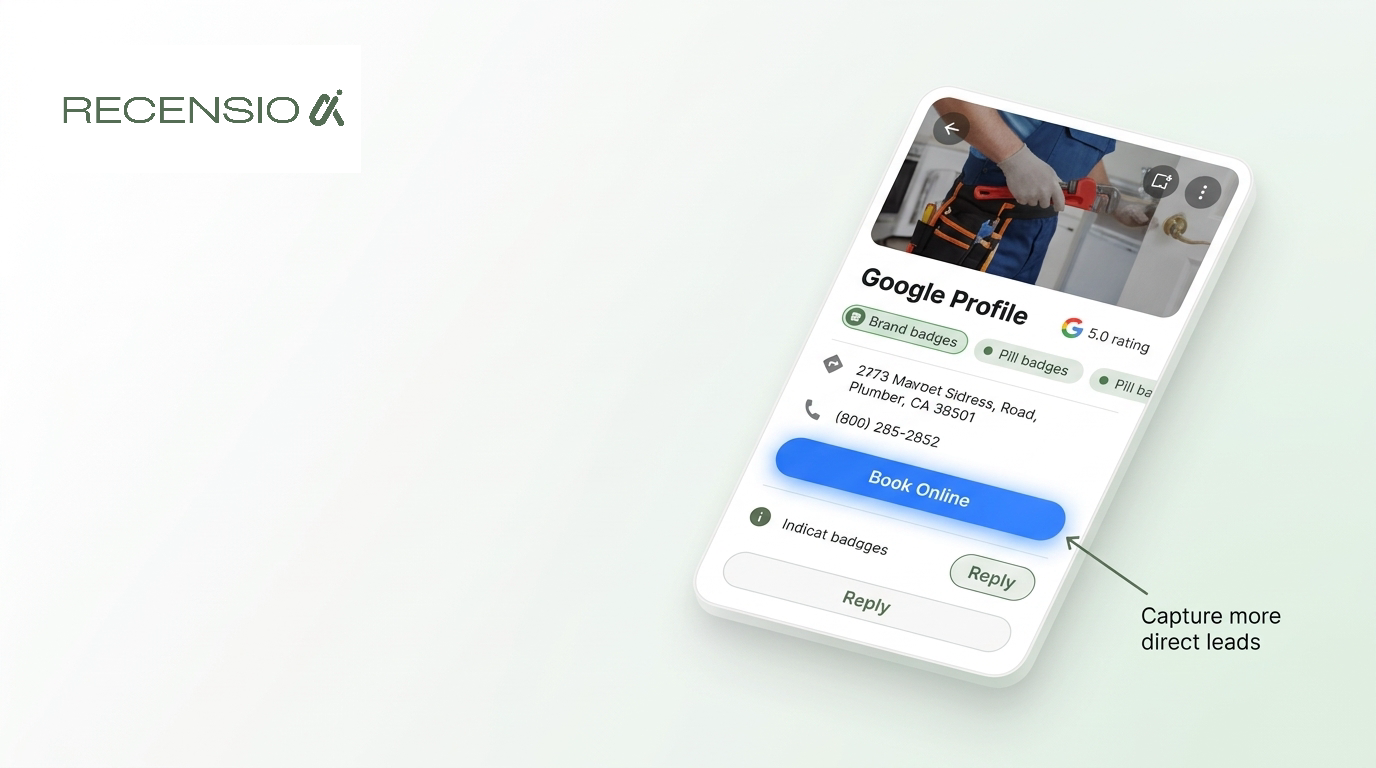
Table of Contents
The short answer
To add a booking link to your Google Business Profile, search for your exact business name in Google. You must be logged into the Google account that manages your profile. Click the "Bookings" icon in the merchant menu that appears above the search results.
Paste your scheduling URL into the field and save. This link must point directly to a page where customers can choose a time or request a detailed quote. Google will reject links that simply point to your homepage or a generic contact form.
How AI Mode displays home service booking links
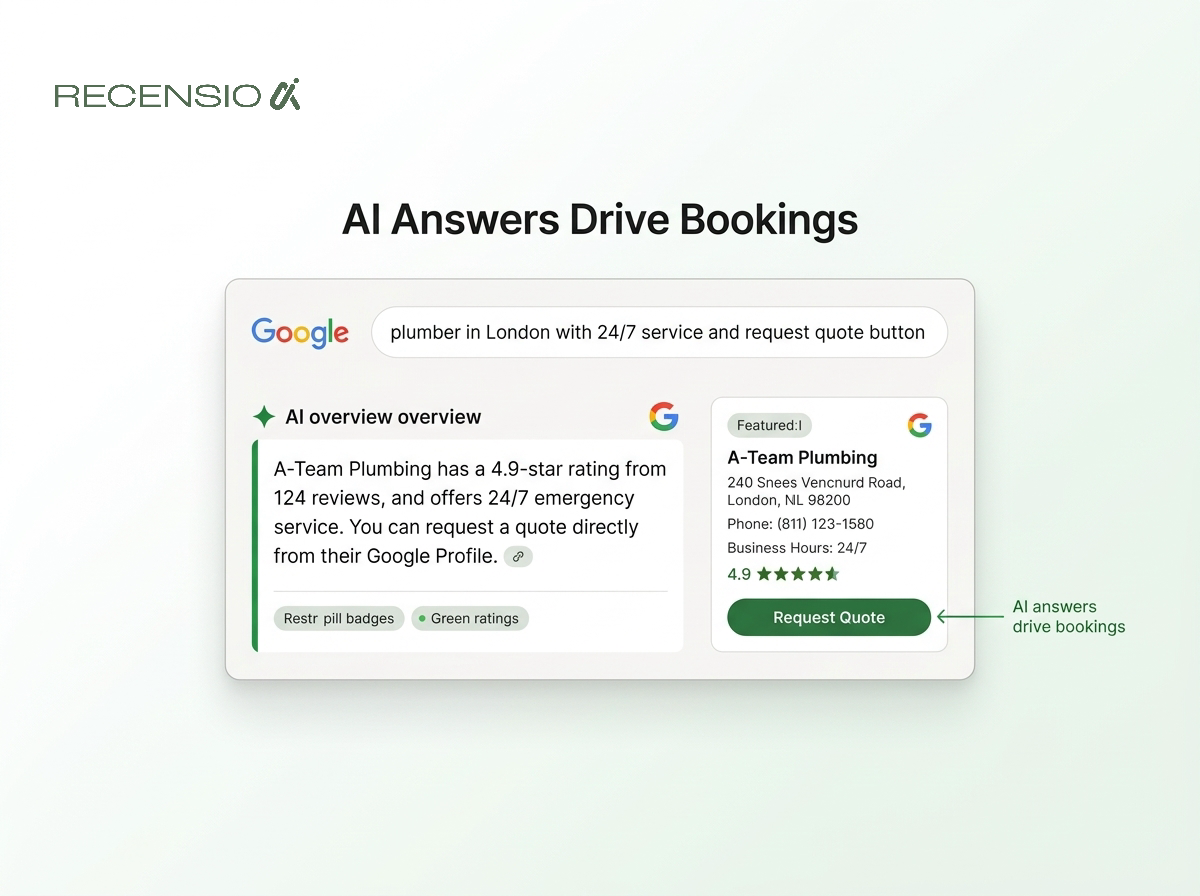
Google recently updated AI Mode to show direct quote and booking links for home service businesses. This shifts how local contractors capture leads. Customers asking AI for plumbing or electrical help now see direct booking buttons inside the AI answer.
If you run a local trade business, your booking link is more visible than ever. The AI reads your profile data and presents your scheduling link right when the customer is ready to hire. You do not need to pay for ads to appear here.
However, Google enforces strict rules for these AI placements. The link must go to a native booking page. It cannot go to a generic "Contact Us" page. If your link fails this test, Google will remove it from the AI overview completely.
Local contractors who set this up correctly see a steady increase in direct leads. The customer intent is high because the AI has already answered their technical questions. They just need to book the service.
Steps to add a booking link to your profile
Adding a manual booking link is the simplest way to take appointments through Google. This feature is free and available to most business categories. You control exactly where the traffic goes.
Many business owners make the mistake of linking to their homepage. Customers click the link expecting to see a calendar. When they see a standard website instead, they leave. You must remove all friction from the booking process.
Create a dedicated landing page for your Google traffic. This page should have your scheduling widget front and center. If you are an electrician, the page should let the customer select a service and request a time immediately.
Google manually reviews new booking links. It usually takes less than ten minutes for the link to go live on your profile. Check your profile from a private browser window to confirm it appears correctly for the public.
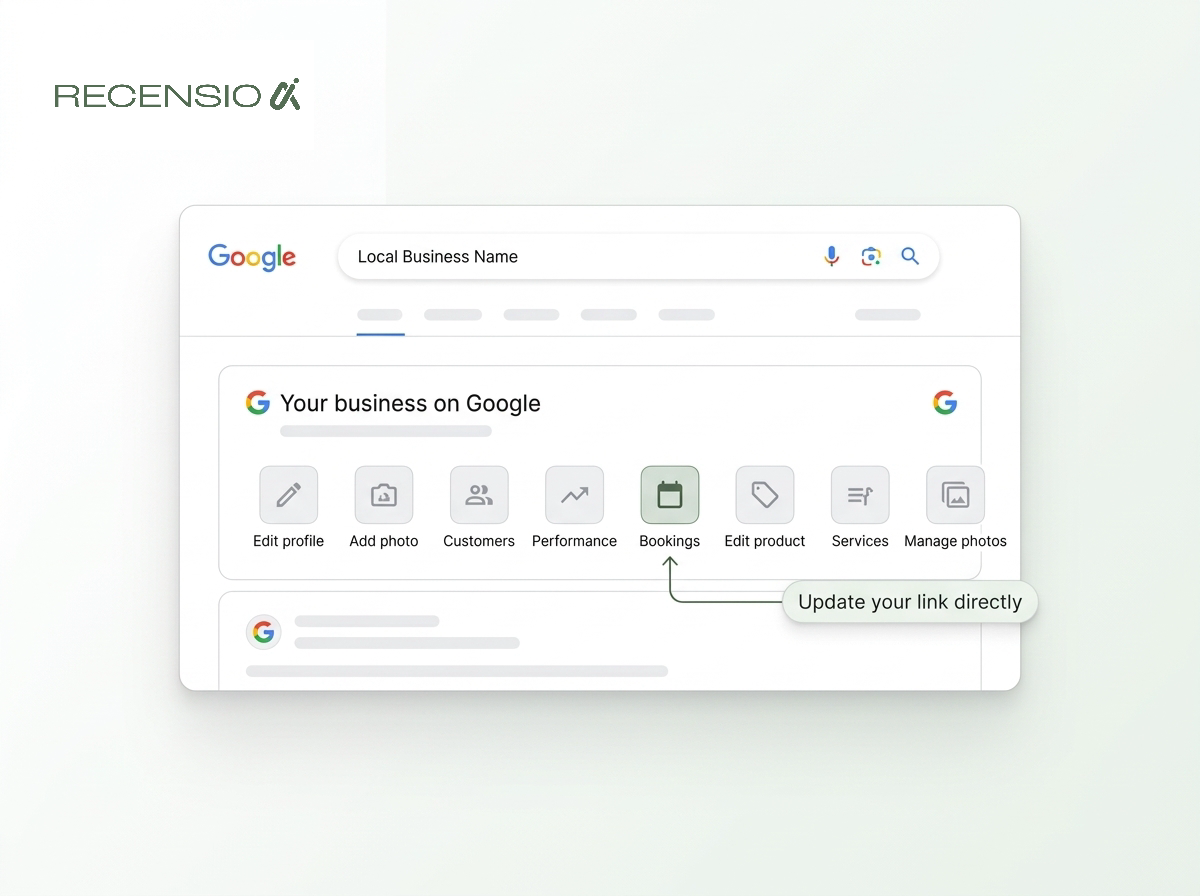
- Sign in: use the exact Google account tied to your profile
- Search your business: type your business name into Google Search
- Find the menu: look for the merchant dashboard above the results
- Select Bookings: click the icon to open the link editor
- Paste your URL: add the exact link to your scheduling page
- Test the link: click it yourself to ensure it loads correctly
Reserve with Google vs. manual links
You have two options for taking appointments on Google. You can use a manual appointment link, or you can use Reserve with Google. They look different to the customer and work differently behind the scenes.
Reserve with Google puts a bright blue "Book Online" button on your profile. When a customer clicks it, a calendar pops up directly inside Google Maps. They pick a time, enter their details, and book the job without ever visiting your website.
To get this native button, you must use scheduling software that partners with Google. Popular tools for salons, restaurants, and home services often have this integration built in. When you turn it on in your software, the button automatically appears on your Google Business Profile.
A manual link is just a standard web link under your contact details. It sends the customer away from Google and over to your website. It is easier to set up, but it usually converts at a lower rate than the native button.
- Native button: customers book without leaving Google Maps
- High conversion: fewer clicks mean more finished appointments
- Automatic sync: connects directly to your existing calendar software
- Partner requirement: you must use supported scheduling software
- Less control: you cannot customize the Google booking interface
Fixing a wrong or broken booking link
Booking links can sometimes become a nightmare. You might look at your profile and see a link to a scheduling software you stopped using a year ago. Or worse, you see a link to a third-party directory that charges you for leads.
You cannot delete these automated links from your Google Business Profile dashboard. Google locks the field when a third-party partner pushes data to your profile. This frustrates many business owners who feel they have lost control of their listing.
To fix a broken or incorrect booking link, you must go to the source. Log into the software platform that is generating the link. Find their integration settings and disconnect Google. Google support will almost never remove these links for you.
If a directory site added the link without your permission, you must claim your listing on their platform. Once claimed, you can usually disable the Reserve with Google integration from their dashboard. Always read the fine print when signing up for lead generation services.
- Check your software: log into your CRM or scheduling tool
- Find integrations: look for a Reserve with Google setting
- Disable the sync: turn off the connection from the software side
- Wait for updates: it can take 48 hours for the link to vanish
- Contact support: ask your software provider if the link remains
Tracking your booking link clicks
You need to know how many customers actually use your booking link. Relying on Google's built-in performance metrics is not enough. Google tracks clicks, but it does not tell you if those clicks turned into actual booked jobs.
The best way to track your leads is by adding UTM parameters to your manual booking link. A UTM parameter is a small piece of code attached to the end of your URL. It tells your website analytics exactly where the visitor came from.
For example, instead of linking to your scheduling page directly, you add tags that identify the traffic as coming from your Google Business Profile. When a plumber gets a new job request, they can look at their analytics and see it came specifically from the Google booking link.
This data is highly valuable. It proves the return on investment of managing your local search presence. If you see fifty clicks but zero bookings, you know your landing page needs improvement.
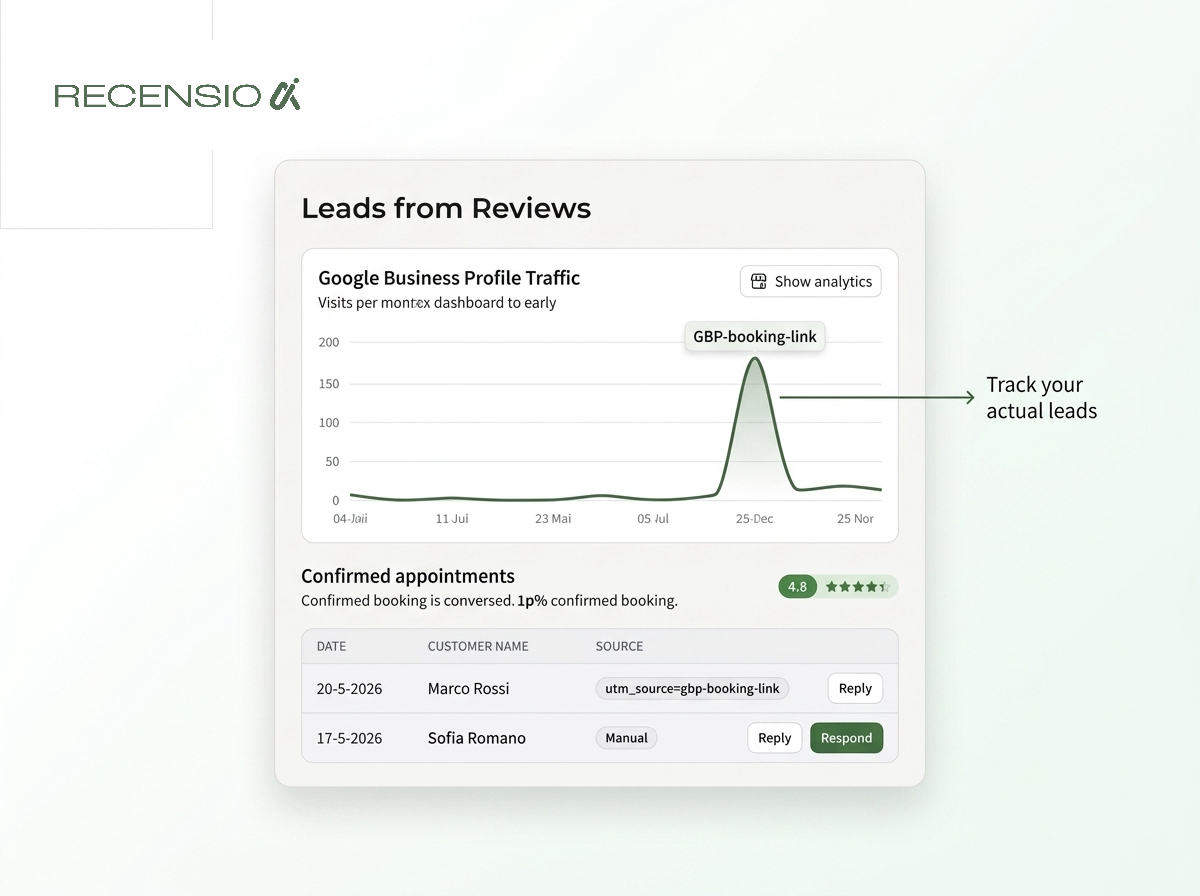
- Use UTM tags: add tracking parameters to the end of your URL
- Identify the source: set the source to Google
- Identify the medium: set the medium to organic
- Identify the campaign: name it GBP-booking-link
- Check analytics: review the traffic in your website reporting tool
Converting more profile visitors into bookings
A working booking link is only part of the equation. Customers will not click your link if they do not trust your business. Your Google Business Profile must convince them to hire you before they even look for the scheduling button.
Reviews are the biggest factor in building that trust. Customers compare your star rating and your review replies against your competitors. Always reply to every review promptly. If you struggle to find the time, use RecensioAI to draft professional, personalized replies automatically.
Keep your profile data perfectly accurate. If a customer clicks your booking link for an emergency repair, but your profile says you are closed, they will hesitate. Run a free Google Business Profile scan to instantly see if you have missing fields or errors.
Treat your profile like your primary website. The easier you make it for a customer to find your information, trust your reputation, and click your booking link, the faster your business will grow.
- Reply to reviews: show customers you care about their experience
- Update your hours: ensure your availability is always accurate
- Add fresh photos: post recent pictures of your team working
- List your services: clearly define what jobs you accept
- Run a profile scan: find missing fields holding you back
Frequently asked questions
You might also like
Handpicked articles for you
Why the Business Around the Corner Beats You on Google: What 21,373 Profiles Reveal
We compared 21,373 Google Business Profiles with their three strongest nearby competitors. The gap is smaller than most owners think, but it has two sides: rating and volume.
How to Protect Your Google Business Profile: Stop Unwanted Changes and Suspensions
The complete guide to protecting your Google Business Profile: who can change it, why suggested edits lead to suspensions, a security checklist, what to do if your profile is suspended, and how 24/7 monitoring restores your details where Google permits.
Free Google Business Profile Audit (2026): the only GMB audit that scores you like Google does
The definitive 2026 guide to auditing your Google Business Profile. Learn exactly what to check, how Google's local ranking actually works, and how to run a free GMB audit in 60 seconds, the most in-depth free audit on the market.