
Smart Review Link, set up & brand
Your public link with star filter, your logo and a QR code for counter or table.
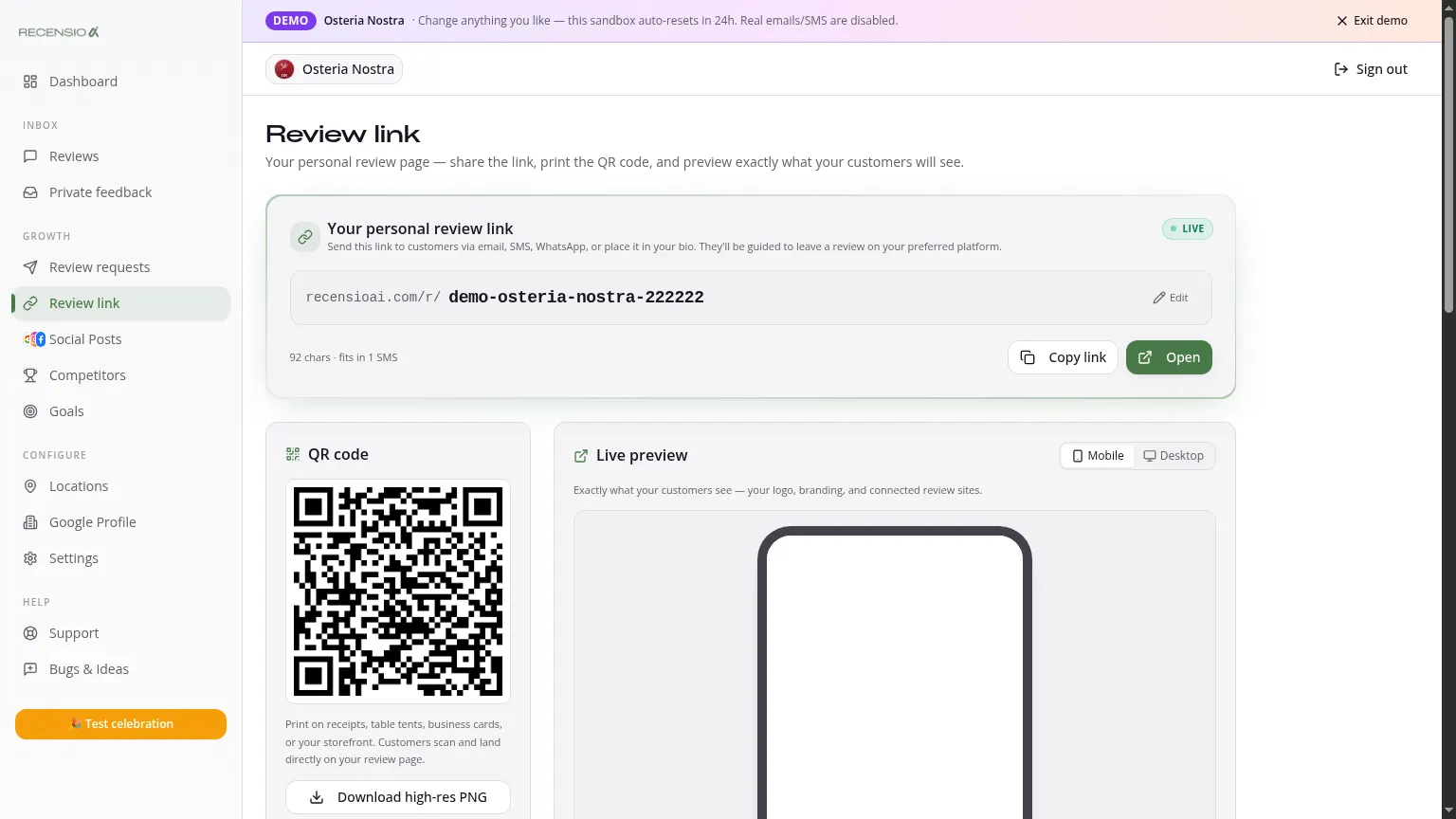
Table of Contents
What is your Smart Review Link?
A short URL like `my.recensioai.com/r/your-business` that gives your customer two choices in one tap: leave a Google review or send private feedback. Both options sit side by side, no star-filter, no hidden routing. Customers who pick Google land straight on your Google Business Profile; private feedback lands in your in-app Feedback inbox.
Open the Review Link page
Click Review Link in the sidebar. You see a live mobile + desktop preview, your current slug and your branding settings.
Change your slug
Click the pencil next to your URL to edit your slug. Keep it short, lowercase, no spaces (use hyphen). We check availability live. Tip: use your brand name, not a first name.
Edit branding
Upload your logo (PNG/JPG). On Pro you can switch on 'Hide RecensioAI branding' so only your brand shows to customers.
Share your link
Three ways to spread the link:
1. Requests, send by email / SMS /. 2. QR code, download a 600×600 PNG for your counter. 3. Copy link, paste in your email signature, invoice or after-service mail.
Kiosk mode
Click 'Kiosk mode' for a fullscreen version without URL bar, perfect for a counter tablet. Customers tap stars and leave a review without typing.
Was this article helpful?
Ready to try RecensioAI?
Collect more reviews, respond with AI and protect your reputation.
Get started free