Onboarding — go live in 5 steps
The guided setup connects your Google Business Profile, creates your review link and sets your growth goal.
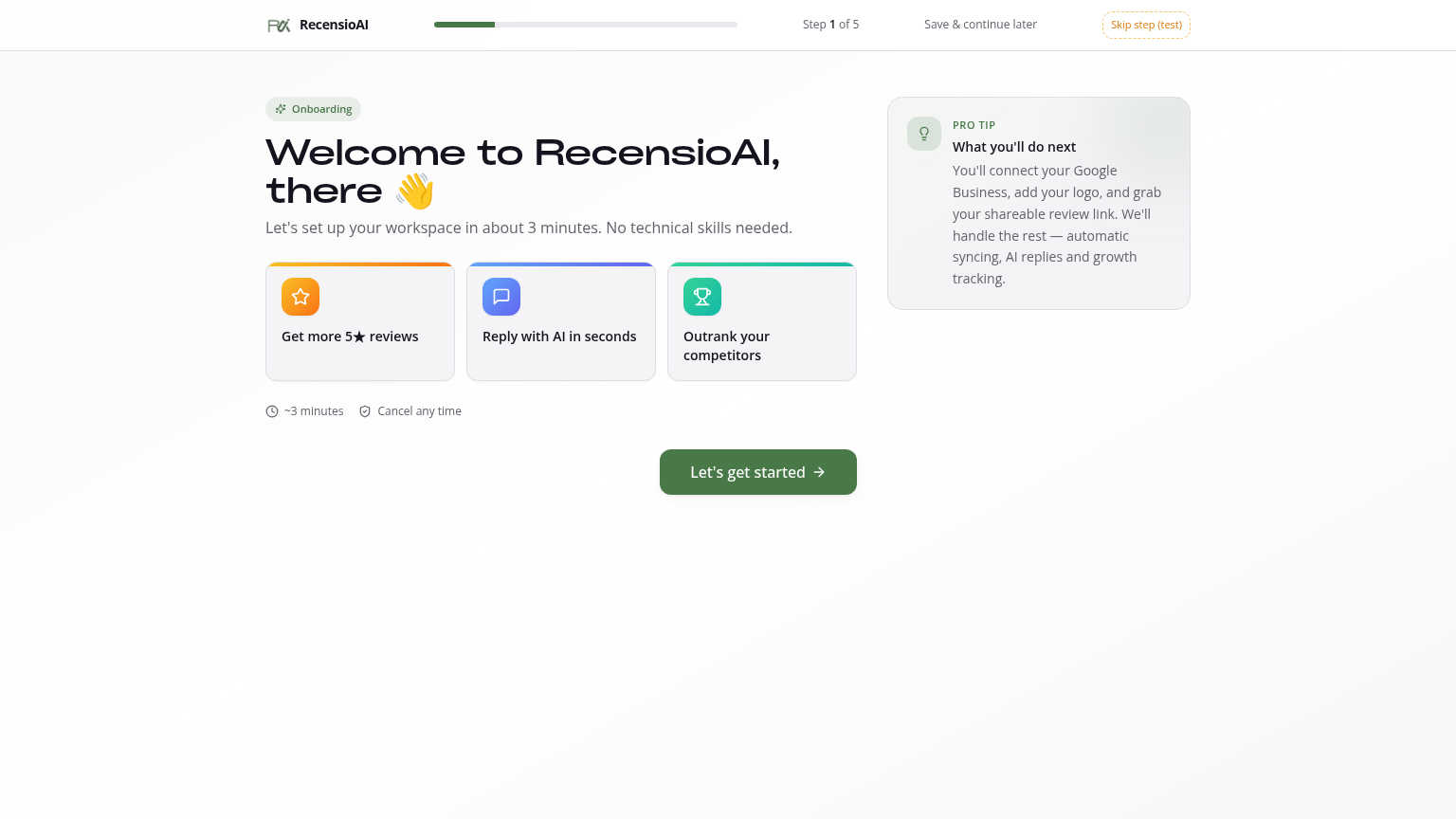
Table of Contents
Step 1 — Welcome
After creating your account, the onboarding wizard starts automatically. You'll see a welcome screen with a brief overview. Click 'Next' to begin — the whole setup takes less than 5 minutes.
Step 2 — Connect your business
Search for your business (use name + city, e.g. 'Bella Restaurant, Amsterdam'). Pick your location from the Google suggestions. We automatically pull in your name, address, rating, review count and Google Place ID.
No Google Business Profile yet? Create one at Google Business Profile first, wait for verification (1–14 days) and come back.
Step 3 — Branding
Upload your logo (PNG or JPG, ideally 512×512 px). It appears on your Smart Review Link, in your email requests and on your QR stand. Skip if you'd rather do it later — you can always change it from Review Link → 'Edit branding'.
Step 4 — Pick your Review Link
Pick your public link, for example `recensio.ai/r/your-business`. We check availability live as you type. Keep it short and memorable — this is what customers see and what's printed on your QR code.
Step 5 — Your growth goal
Set a realistic target: e.g. '20 new reviews in 30 days'. Your Dashboard shows a progress bar and you get a weekly status update. You can adjust this anytime from Dashboard → 'Goals' tab.
Done — what's next?
You land on your Dashboard. Three recommended actions:
1. Go to Requests and send your first 10 review invitations. 2. Open Review Link and download your QR code for the counter. 3. Visit Settings → AI Agent to set your tone and signature.
Was this article helpful?
Ready to try RecensioAI?
Collect more reviews, respond with AI and protect your reputation.
Get started free