
Reply to reviews with AI
Open a review, generate an AI reply and post it straight to Google.
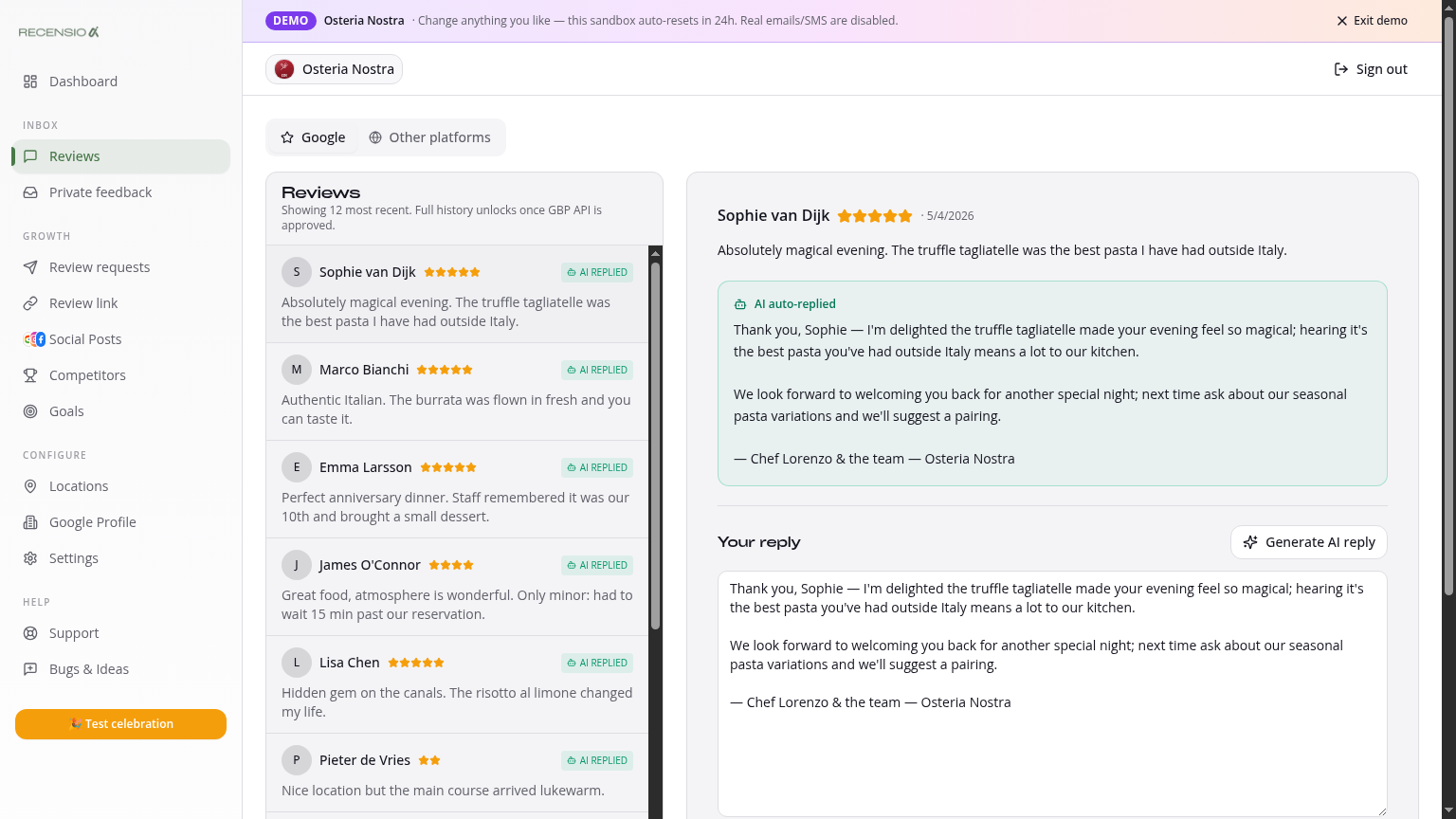
Table of Contents
Open the Reviews page
Click Reviews in the sidebar. You see every review with stars, date and text. Above the list: filters (replied/unreplied, star rating, period) and a search box.
Generate AI reply
Click any review. A panel opens on the right with the review and an empty reply field. Click 'Generate with AI' — you'll get a suggestion in the right language and tone within 2 seconds. Edit freely.
Set AI style
Style and length come from Settings → AI Agent: pick professional/friendly/formal and short/normal/long. Toggle 'Reply in review language' so an English review gets an English reply.
Post the reply
Happy? Click 'Post to Google'. Your reply appears under the review on your Google Business Profile right away. We sync the status back — the review is marked as replied.
Smart filtering
Tackle unreplied 1–3★ first (biggest impact on new visitors). Then use 'Unreplied + 4–5★' for a thank-you round. The filter remembers your last choice per session.
External reviews
At the bottom of the page: a tab for reviews from other platforms (e.g. Facebook). These are display-only — replies are posted on the source platform itself.
Was this article helpful?
Ready to try RecensioAI?
Collect more reviews, respond with AI and protect your reputation.
Get started free