
Manage your Google Business Profile
Edit your profile info, hours, photos and posts — directly from RecensioAI.
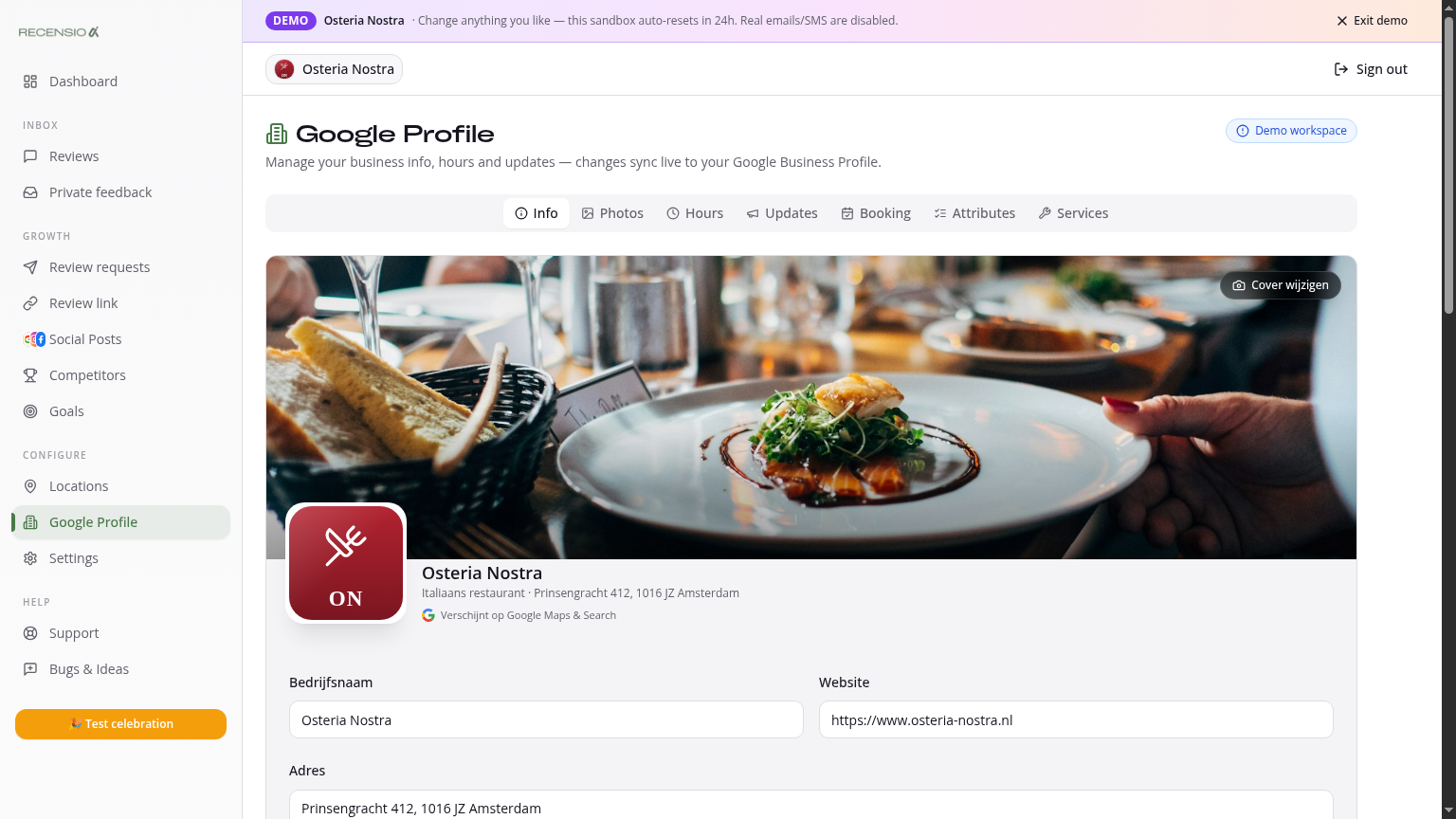
Table of Contents
Open Google Profile
Click Google Profile in the sidebar. Four tabs: Info, Hours, Posts and Photos.
Info tab
Edit your business name, category, description, phone, website and address. Click 'Save' — we push it to Google. Changes typically appear on Google Maps and Search within minutes.
Hours tab
Set regular hours per day. Add special hours for holidays or breaks — Google highlights these prominently as 'Different hours'.
Posts tab
Create Google Posts (offer, event, update) directly from RecensioAI. For automatic image + text: use Social Posts with Google as a channel.
Photos tab
Upload or replace logo, cover photo and interior shots. Profiles with 10+ photos get 35% more clicks to website (Google data).
Add extra buttons
Add CTA links: chat, menu, online order, booking, social media. These appear as buttons on your Google Business Profile.
Sync frequency
We sync every 6 hours automatically — and instantly after every edit. Don't see something? Click 'Sync now' in the top-right.
Was this article helpful?
Ready to try RecensioAI?
Collect more reviews, respond with AI and protect your reputation.
Get started free